
ChiroSpring Product Release 12-11-2025
Here’s what’s new in ChiroSpring 360 this week. This release focuses on giving you more flexibility and tightening up day to day workflows especially around Online Booking and provider setup along with a few small enhancements that make everything feel smoother.
Online Booking: Payment Options
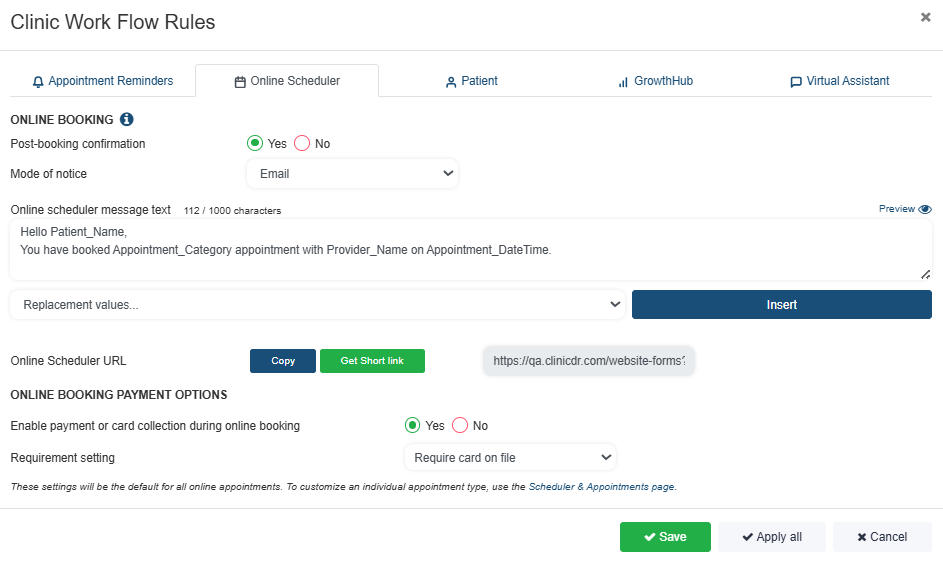
You now have complete control over how payments are collected during Online Booking. This includes clinic-level defaults and appointment-level overrides, giving you flexibility to require payment only when it makes sense for your workflow.
Clinic Level Settings
Set the baseline rule your Online Scheduler will follow:
- Require Deposit – Patients pay a deposit to secure the appointment.
- Collect Card on File – Patients enter a card before scheduling (no charge is made).
These rules apply to all appointment types unless an appointment level override is added.
Where to set clinic defaults:
Settings - Communication - Workflow Rules - Online Scheduler
Appointment Level Overrides
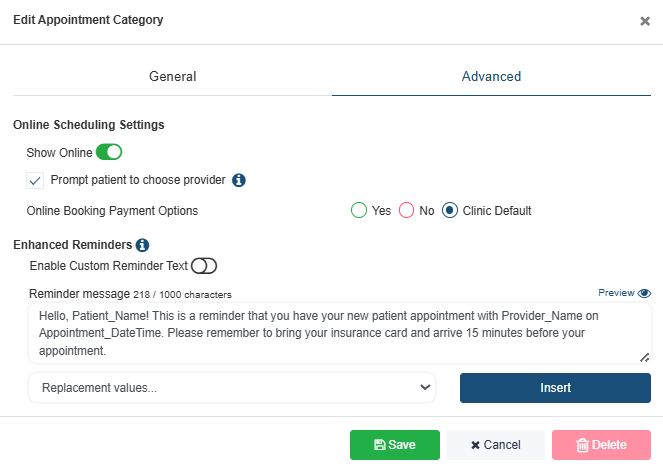
Each appointment category can now override the clinic default with its own payment rule:
- Require Deposit – Collect a deposit amount just for this appointment type.
- Collect Card on File – Require a saved card only for this visit type.
- Use Clinic Default – Follows whatever rule you set at the clinic level.
Great for:
New patient appointments
High no show visits
Same day or high demand slots
Appointments requiring upfront commitment
Where to set overrides:
Settings - Clinic - Scheduler & Appts - Edit Appointment - Advanced - Online Scheduler Options
Want the full walkthrough?
We have a detailed guide with step-by-step instructions and examples.
Read the full article here 👉 Online Booking Payment Options
Additional Provider Numbers
Practices can now store multiple provider numbers for each provider and use them across different billing scenarios. This gives you more flexibility when a payer, location, or claim type requires a specific identifier.
Inside each provider profile, you’ll now see a section called Provider IDs & Claim Qualifiers.
This includes fields for:
- Taxonomy Code (ZZ)
- State License Number (0B)
- Social Security Number (SY)
- Blue Shield Provider Number (1B)
- Medicare Provider Number (1C)
- Medicaid Provider Number (1D)
- State Industrial Accident Provider Number (X5)
- Provider Plan Network Identification Number (N5)
Each field displays the correct CMS qualifier code to ensure claims generate with the proper formatting.
Where to find it
Settings - Users - Select a Provider - Provider IDs & Claim Qualifiers

Why this matters
Some providers need to use different numbers for different payers or claim types especially in multi-location clinics or when handling Medicare, Medicaid, Blue Shield, or workers’ comp.
This update lets you:
- Enter all required provider identifiers in one place
- Reduce claim rejections tied to missing or incorrectly formatted provider numbers
Advanced Spine: New Spine & Rib Indicators
We’ve added a new visual indicator that appears in both the Spine and Ribs tabs inside Advanced Spine. This helps providers document findings faster and with better clarity across cervical, thoracic, lumbar, and rib regions.
What’s new
- A clear indicator now highlights the segment you’ve selected
- Works the same way across Spine and Ribs
- Supports multi-segment selection with right-click
- Improves visibility when documenting multiple findings in a row

Why this matters
This update makes it easier to see exactly what you’ve selected especially when charting quickly or moving across multiple regions. It reduces misclicks and speeds up documentation.
Attorney Report Updates
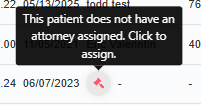
We’ve added a quick action attorney icon next to patients with PI cases so you can manage attorney records without digging through the chart.
What’s new
- A small attorney icon now appears in the patient list if no attorney is assigned, the tooltip clearly prompts: “This patient does not have an attorney assigned. Click to assign.”
-
Click the icon to add the attorney on file
Why this matters
This update makes PI workflow faster by letting you review or assign attorneys straight from the list no extra navigation, no hunting through the chart.
Where to find it:
Reports - Patients- Attorney