Import ChiroSpring Desktop Balances into ChiroSpring 360
This article is only for ChiroSpring Desktop users who transition to ChiroSpring 360.
Transferring patient balances from Desktop to 360 is straightforward, but it does need to be done manually. We don’t complete this step on your behalf because it depends on your preferred timing for the import, requires clearing the balances in Desktop after the transfer, and may need to be repeated multiple times during your transition, as patient balances can change when insurance payments are posted.
Exporting Balances from ChiroSpring Desktop
Go to Settings/Export Data. Run the "Patient Ledger Balance Report".
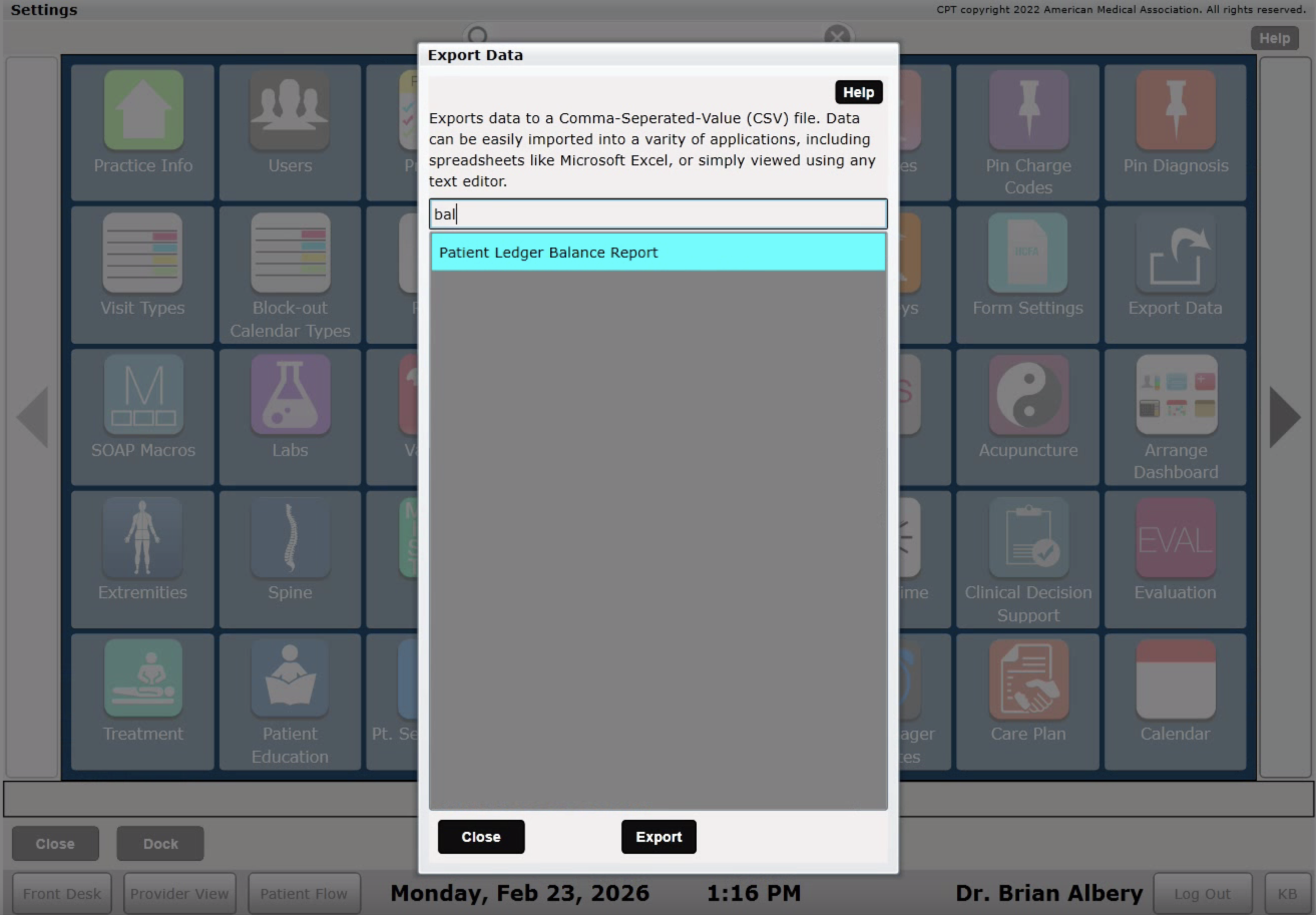
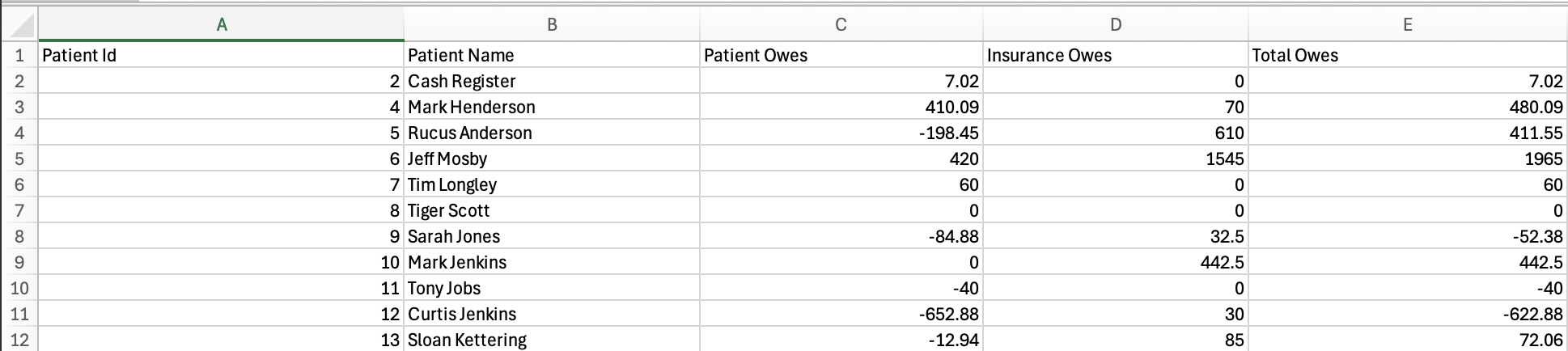
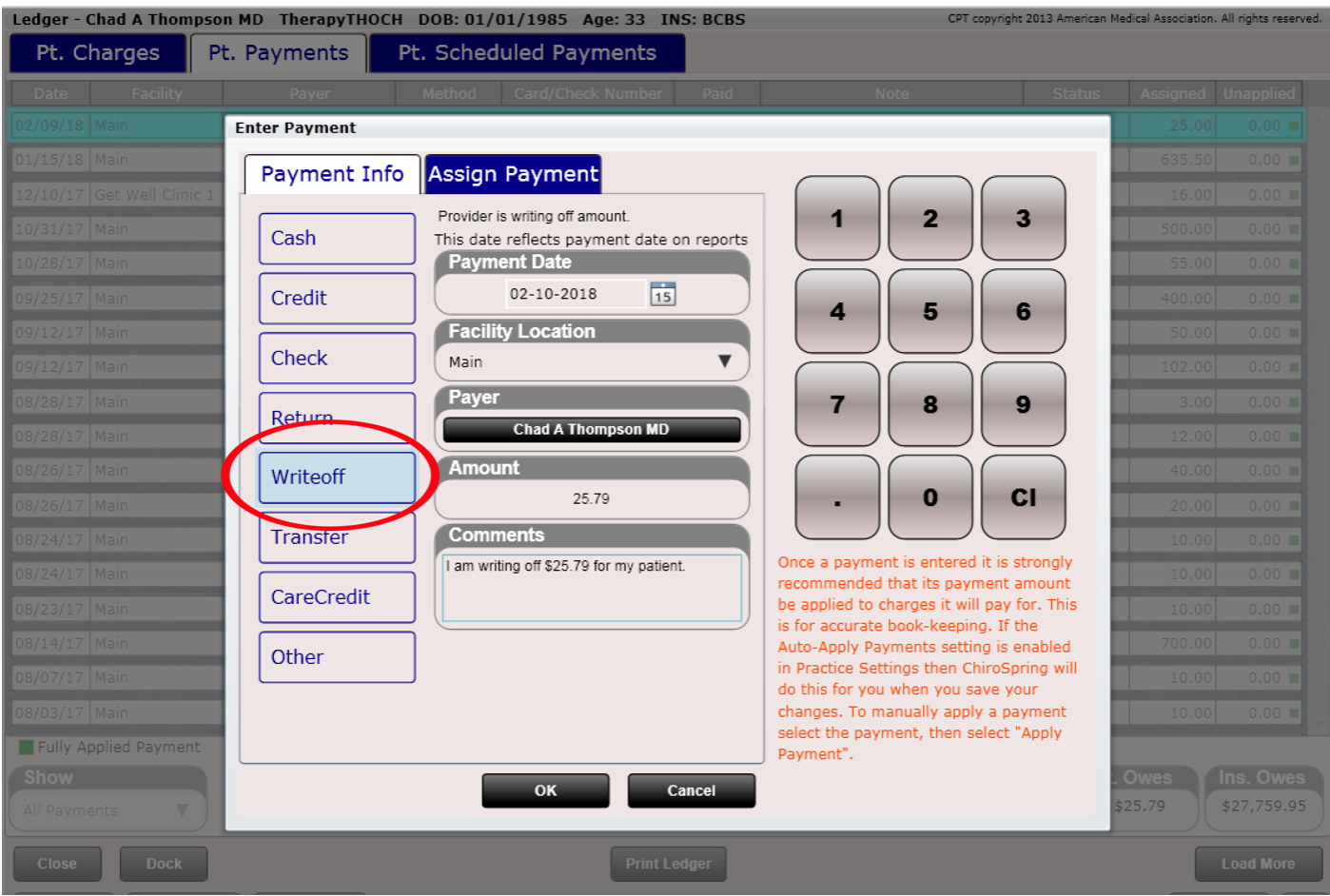
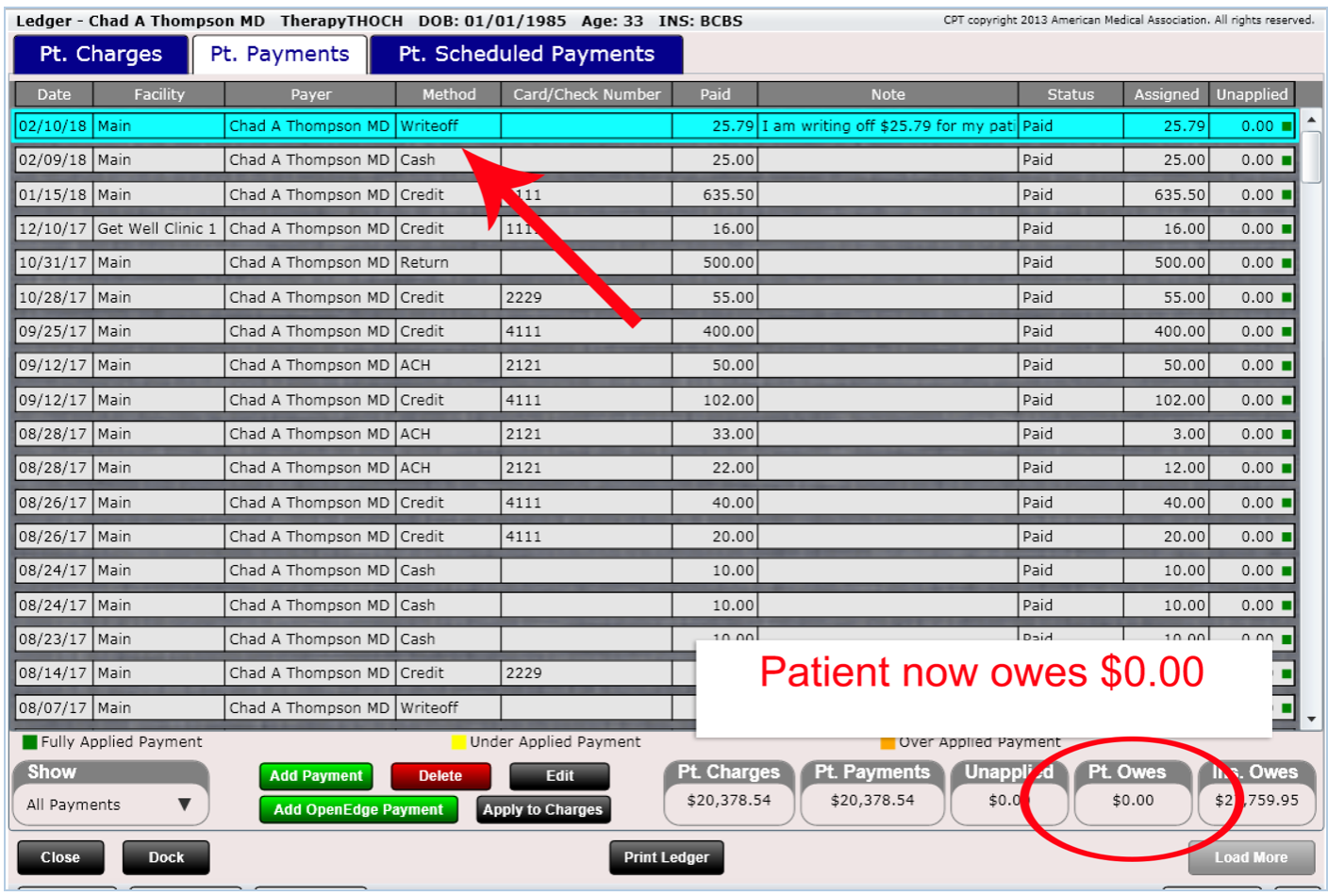
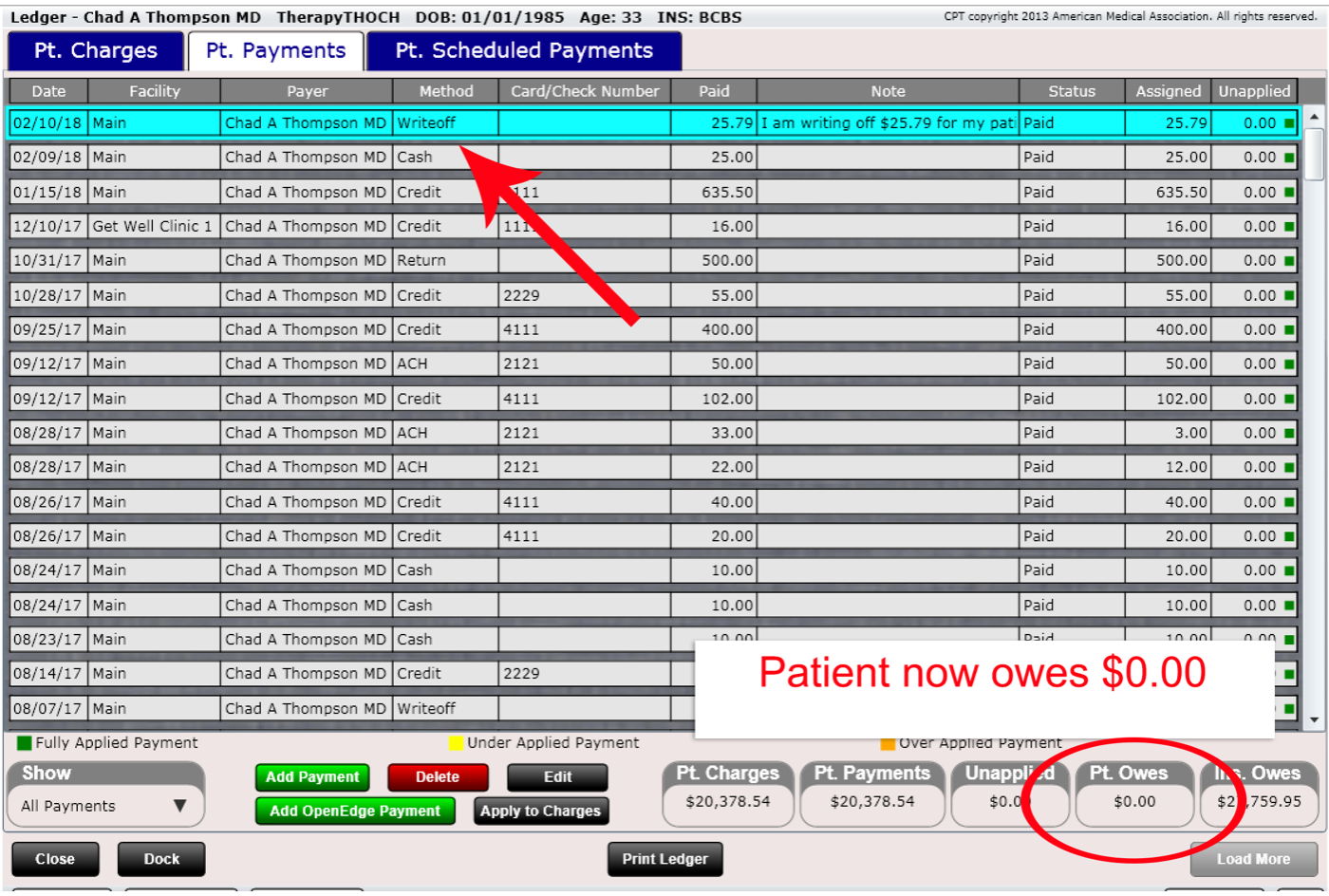
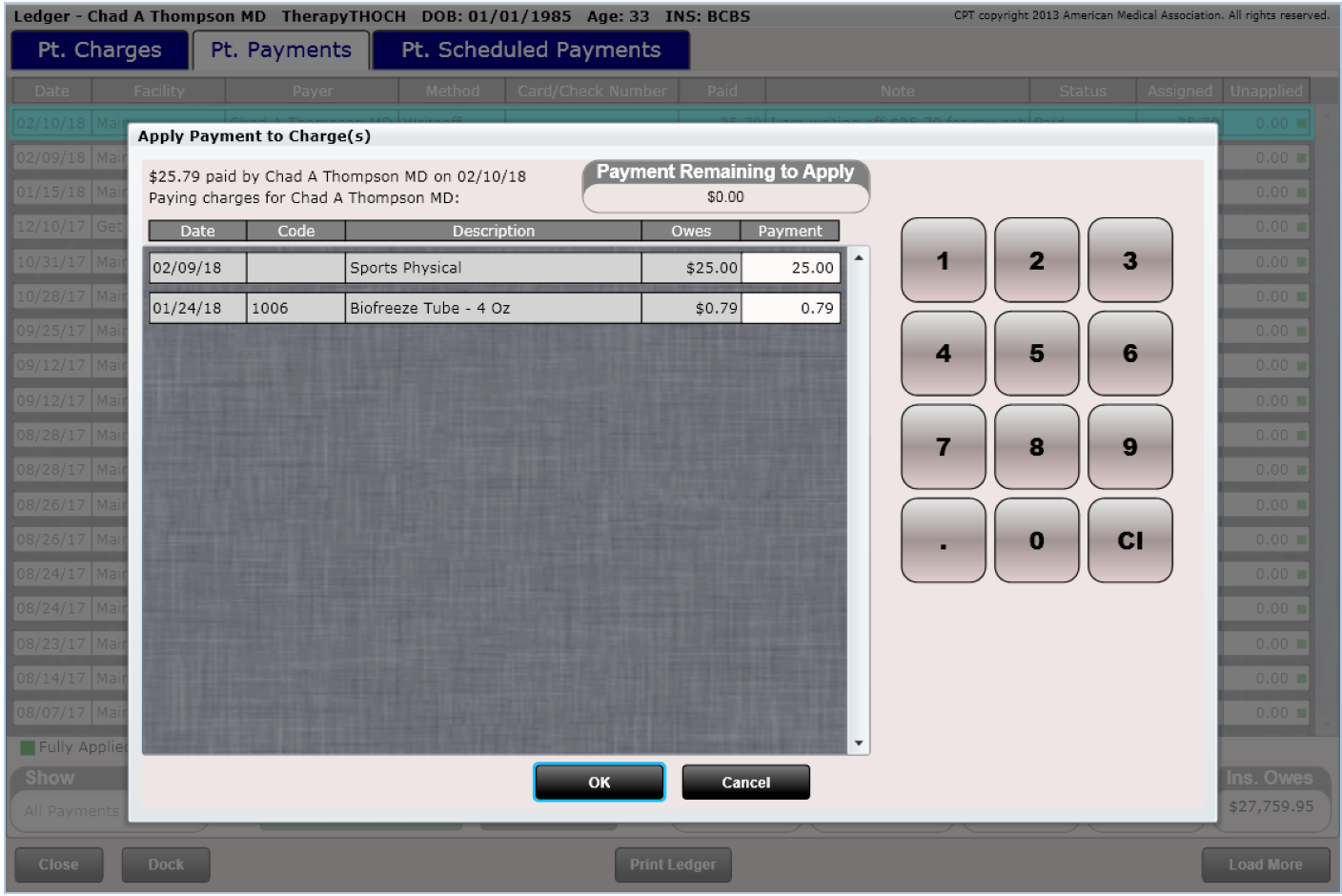
You will add all of these balances to the 360 "Import Patient Balances" spreadsheet (this is a manual process). Make sure you write off the balances in Desktop so the patient does not have a balance in both systems.
Import Patient Balances from Desktop into ChiroSpring 360
Now that you have your patient balances in a spreadsheet from Desktop, follow the steps below to get them imported into ChiroSpring 360. Of note, this process should be done after your data migration as your patients need to exist in 360 before you perform this process.
In ChiroSpring under Settings/Import locate the patient balances section.
Click Download CSV Template*
*Do not edit the headers at the top of the spreadsheet (see image below for reference).
Enter patient balances into the payment balance column (paymentBalance) of the template. Copy and paste will make this a faster process. As a reminder, write off the balances in ChiroSpring Desktop to the patient does not have a balance in both systems.

Import Patient Balances into ChiroSpring 360
Now that you have prepared the .CSV you can import it into ChiroSpring 360.
- Go to Settings/Import/Patient Balances - CLICK HERE
- Select Import File > Choose the Patient Balance Template .CSV file from your computer.
ChiroSpring will start importing your patient balances.
Larger data sets may take longer to import, so be patient while the software processes your import. Avoid navigating away from the import page until the process is complete.
Verify Imported Data
Once the import is complete, double-check the imported patient balances within ChiroSpring 360 to ensure accuracy. Cross-reference with ChiroSpring Desktop's data to confirm successful importation.
To save import, expand the action button in the lower right corner of the page and click Save.

Once the Import is completed, a Balance Forward(BF) Claim is generated, and the Import Date is set as the Date of Service.
To review, Navigate to the Patient's Claim History Page.

Write Off Balance in Desktop