ChiroSpring Product Release 8-13-2026
Treatment Note / Fee Slip Workflow
We’ve improved the 'Front Desk' Treatment Note & Fee Slip workflow to make it easier to see what has already been completed, what is connected, and what still needs attention for each date of service.
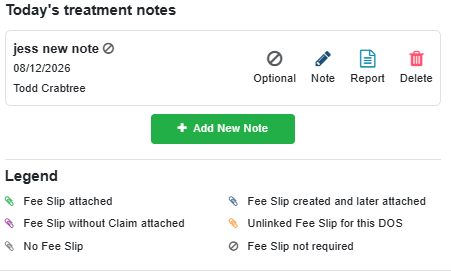
Updated status icons now show whether a Fee Slip is attached to a Treatment Note, exists but still needs to be attached, has not yet been created, or is not required.
Understanding the Status at a glance
The status icons give you a quick view of how the Fee Slip was created and how it relates to the Treatment Note, making it easier to understand what has already happened and whether anything still needs attention.
🟢 Green – Fee Slip Attached: The preferred workflow was followed: The Treatment Note and Fee Slip were completed together through the standard workflow, and the Fee Slip is attached to the note.
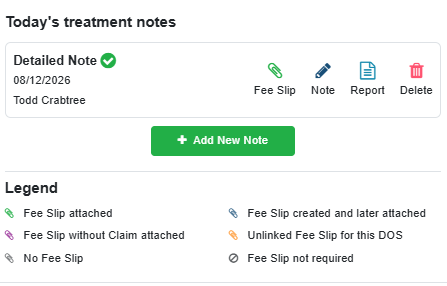
🔵 Blue – Fee Slip Created and Later Attached: The Fee Slip was created outside of the standard workflow and later attached to the Treatment Note. The Fee Slip is attached, but this lets you know it was created separately.
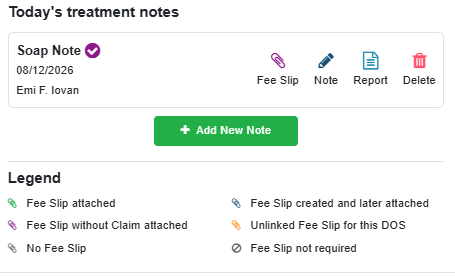
🟣 Purple – Fee Slip Without Claim Attached: The Fee Slip was created without a claim and is attached to the Treatment Note.
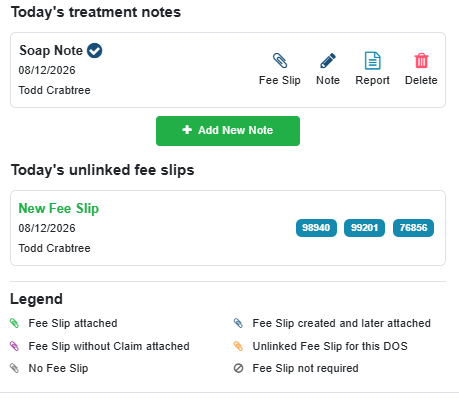
🟠 Orange – Unlinked Fee Slip for this DOS: A Fee Slip exists for the same date of service but is not attached to the Treatment Note.
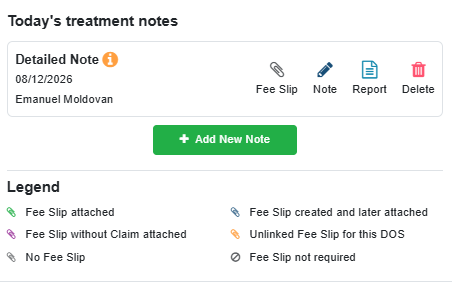
🚫 Fee Slip Not Required: The Treatment Note has been identified as not requiring a Fee Slip.
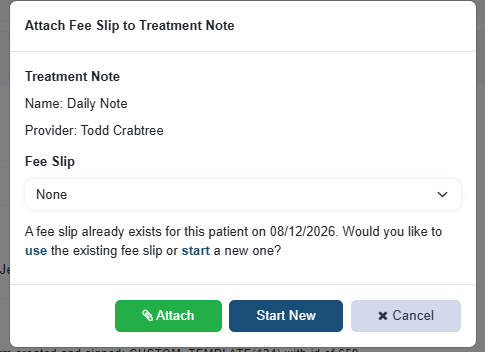
When creating a Fee Slip, a prompt will appear when one already exists for that patient and date of service, giving you the opportunity to review it before creating another.
Flow From Treatment Note:
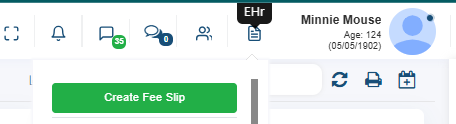
Flow From EHR Menu:
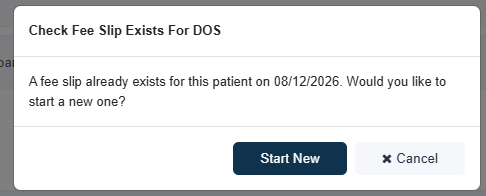
Together, these updates provide a clearer view of the Treatment Note and Fee Slip workflow across the different areas of ChiroSpring helping teams stay connected and reducing accidental duplicate Fee Slips and claims.
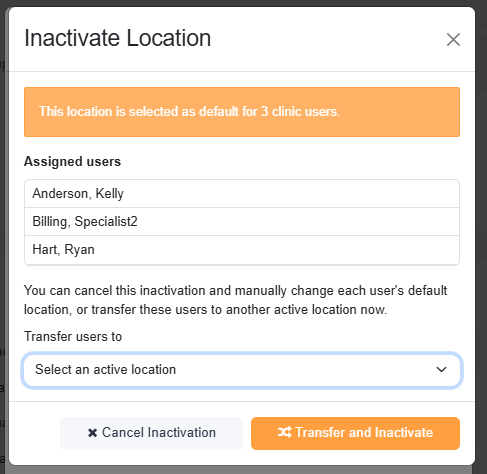
Inactivate Location
Admins can now inactivate a location without losing historical information.
When inactivating a location, you’ll also have the option to move assigned providers to another active location. Once inactive, the location remains available for historical records but can no longer be used for future activity.
Add Payment is back on the Scheduler!
You asked, and it’s back! Add Payment has returned to the Scheduler hover menu, giving front desk teams quick access to take a payment directly from the appointment.
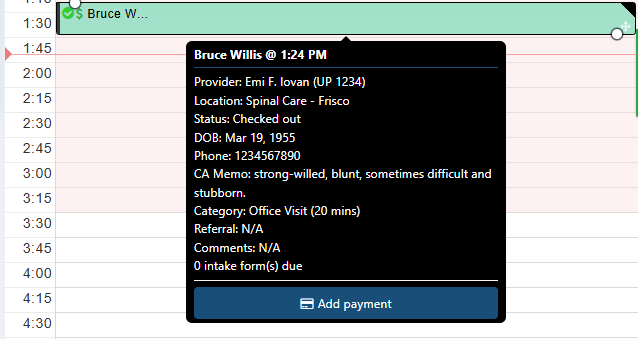
We also improved Scheduler drag-and-drop behavior so the appointment tooltip no longer gets in the way while moving an appointment.
CA Memo Attorney Report
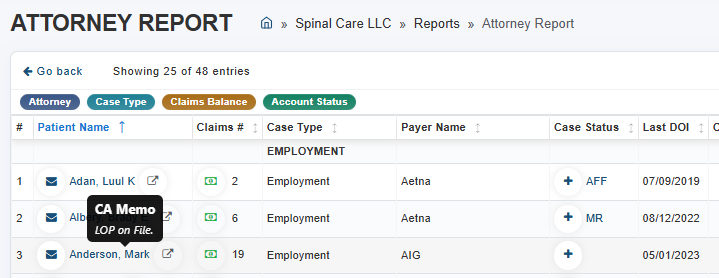
The CA Memo is back on the Attorney Report!
Hover over a patient's name on the Attorney Report to quickly view their CA Memo without leaving the report.
Save Filters for Toggle Users
Saved Filters now work across locations for Toggle Users.
When a Toggle User saves a filter, it is saved to their individual user profile, allowing them to access the same saved filter when toggling between databases.
📌A quick note about saved filters:
If you’re logged directly into a clinic, any filter you save is available to all users in that clinic.
If you use Toggle Access to move between multiple clinics, filters you save are tied to your Toggle User profile. You’ll see those filters as you move between clinics, but other users in those clinics will not see them.
Profile Name Displayed on Fee Slip (Ditto from Classic & Claim)
For practices with multiple locations or provider profiles, we’ve made it easier to choose the right one.
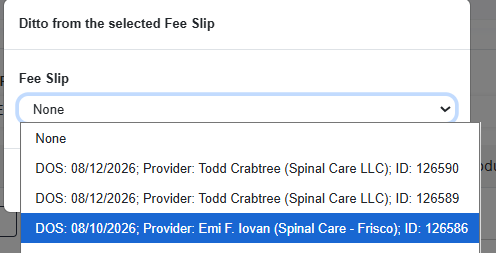
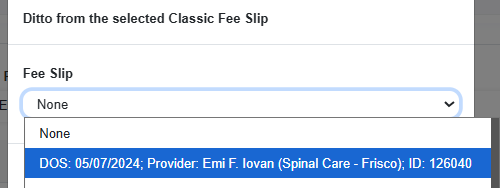
The provider profile name is now displayed in the Fee Slip Ditto from Claim, and Ditto from Classic Fee Slip dropdown, reducing confusion when a provider has more than one profile.
Ditto from Classic Fee Slip:
Ditto from Claim: