
ChiroSpring Pay Desktop Migration to 360
If you are using ChiroSpring Pay in Desktop there are a few steps for you to follow.
- You will need to sign up for ChiroSpring Pay (again). This seems silly, we know. However, as it is a new platform this step is required. It should be a fast process as you were already accepted once.
- When you apply, provide your Desktop PMID (this helps ensure your account is transitioned smoother). You can find the PMID in Desktop in Settings/Practice Info/Integrated Payments (top right).
- If you have a terminal, let them know that during your enrollment process. Your terminal will need to be "moved" from the backend to ChiroSpring 360. The Serial number that is located on a white sticker under where the paper receipt roll goes and starts with 'WP' is needed to make the connection change over. Once moved, you will perform a software update. Once the update has completed successfully, it will work in ChiroSpring 360.
- We can migrate your stored cards on file. If you would like this done, please let us know.
- We cannot migrate scheduled payments. You will need to re-create these scheduled payments in 360. In Desktop run the "Scheduled Payments Report" for status "Scheduled".
-
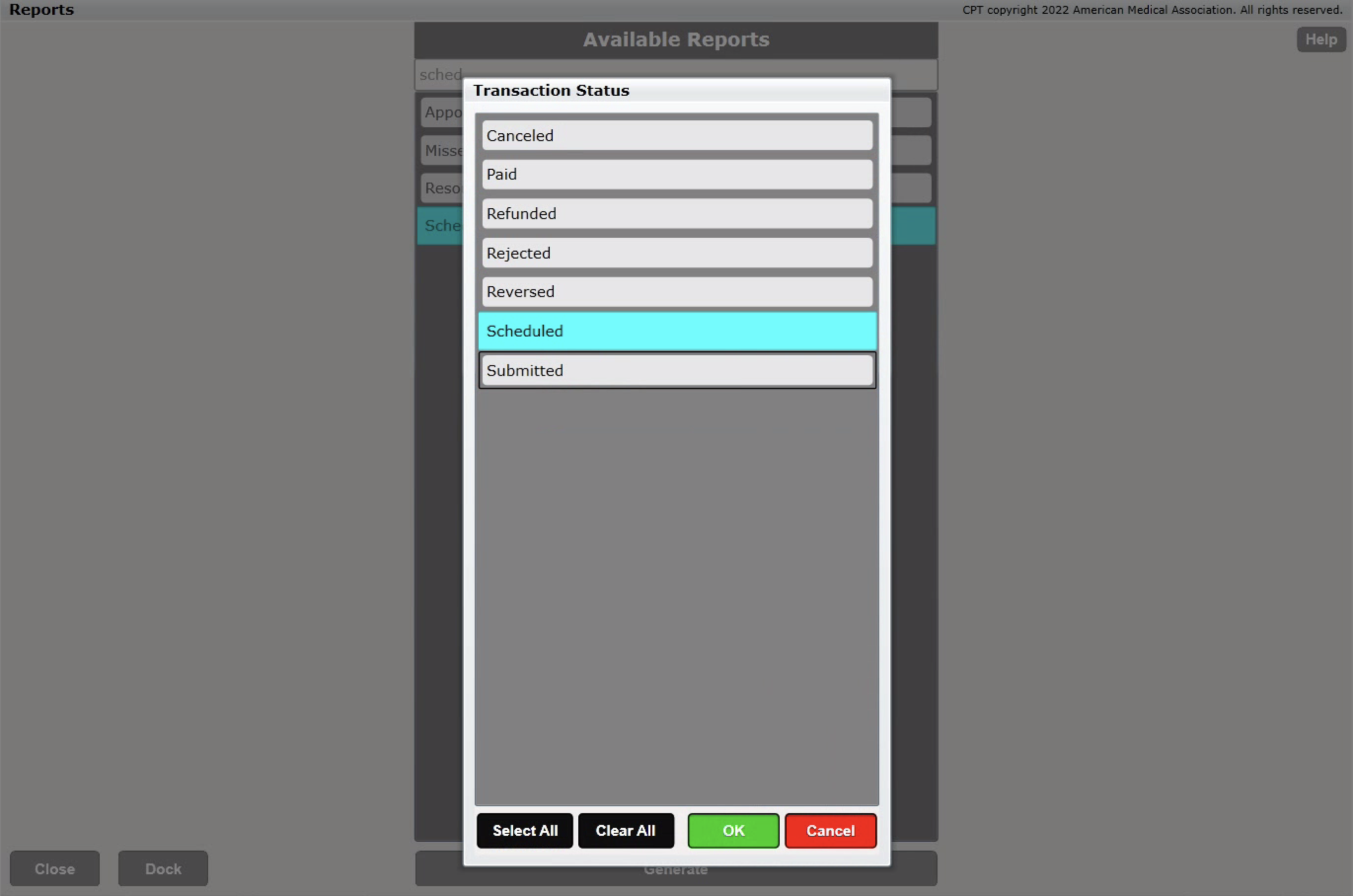
- Then re-create them in 360. Click Here to learn more.
