
Patient Menu - Communicator Overview
- Your communications dashboard for your patient

You can Open/Close the Email/Text tabs at the top of screen to view communication history and send an email or sms.
First Column
5 Star Reviews
Learn more about sending Patient Reviews -> https://chirospring.helpscoutdocs.com/article/571-growthhub-patient-reviews
Next Appointment
Rewards Points
Learn more about ChiroSpring Patient Loyalty Tools available -> https://chirospring.helpscoutdocs.com/article/578-growthhub-patient-loyalty
Second Column
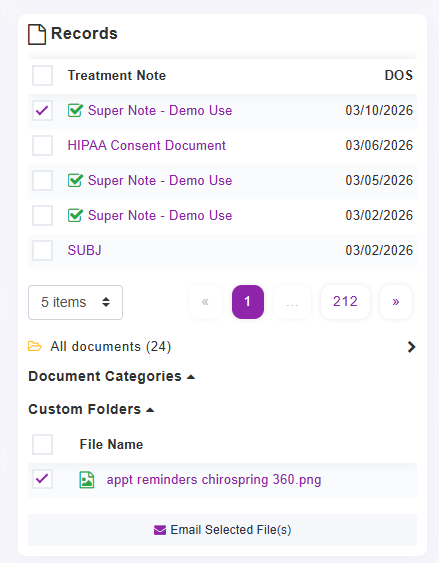
Records
Displays documentation history, including:
- Treatment Notes
- Patient Forms
- Documents Attached
Each record includes the Date of Service for quick access
- You can click to quick view
- Select one or multiple and Email Selected Files
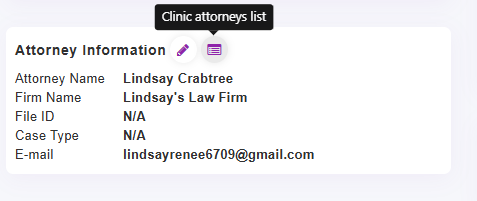
Attorney Information
You can Assign an attorney or see attorney assigned to patient, firm name, file ID, case type and attorney email. Click the icon to Edit or Quick link to your attorney list to add a new one:
Account
Quick account summary (charges/owed)

Patient Mobile App
Shows:
- Linked patient accounts
- App status (active/inactive)
- Last login date
- Account access management (Block Account / Password Reset)
Confirms mobile access permissions and HIPAA acknowledgment.
Learn more about the Patient Mobile App —> https://chirospring.helpscoutdocs.com/article/771-provider-mobile-app-tips-on-using
Third Column
Patient Preferences
You can customize and override your global settings for patient personalization perferences for
Appt Reminders/Communication, Online Scheduler, Patient, GrowthHub, PMR, Patient Intake

Patient Forms
Here you can manage your patient digital form, request forms and sms/email requested forms directly to the patient:

Learn more about Digital Patient Forms - Building, Sending, Using
https://chirospring.helpscoutdocs.com/article/556-digital-patient-intake-forms
Fourth Column
Marketing Dashboard

Marketing Notes
- Marketing Notes will appear in this dashboard only
Marketing Ticklers
- Set marketing tasks specific to this patient and separate from patient care reminders. These can be found on your Homepage at the bottom

Finding Marketing Ticklers:

At the Bottom of the Screen:
Shared Health Data from Patient Mobile App
