
Patient Menu -Treatment Dashboard Overview
The Treatment Dashboard provides a clinical and operational snapshot of the patient’s active care. It centralizes documentation, coding, plan tracking, and clinical notes in one view.

FIRST COLUMN (PC/LAPTOP/DESKTOP VIEW)
Chief Complaint
Includes:
- Chief complaint
- The Chief Complaint will show ONLY the complaint patient completed through Check In of current day. You can Toggle On if you want to print in today's completes Note(s). It will refresh tomorrow, there is not a way to go back and review these, outside of viewing them in the completed note for that Date of Service if toggled on
- It will show the body images with icons placed, if patient completed
- And/or Pain Level Rating out of 10

Select Template Panel
Location: Left sidebar
This panel allows providers to Start their Provider Note
- Select template (Super Note, Daily Note, Exam, etc.)
- Provider Note Templates checked on for Treatment Dashboard will show here in order you chose. The Create Fee Slip will be an option based on your Clinic Settings. The purple icon next to "Select Template" will open all of your active templates.

Spine Records
Location: Top center of the Treatment Dashboard
- Quick View for Adjustment History from using Basic or Advanced Spine: This panel will show the previous (up to 5) visits Spine Documentation. You can use the small arrows to the right to Expand and Collapse the quick views

SECOND COLUMN
Household
Create/Manage Households. Shows associated household members linked to the patient account and can make any edits here.
Membership
If memberships are toggled on to use, will display active or past membership plans
Helps providers quickly verify services used/available before treatment.
-> Learn more about Memberships
Orders
You can select the Date Picker to choose any date and will track all services since that specific date. You can set Antc #: Anticipated and it will track
Perf # - performed
Rmn # - remaining
Based on what you set as anticipated and tracked automatically when cpt is added to a fee slip within date range

Doc Edits
This will have TODAY's already started or finished Soap Note (and related Fee Slip)

- You can Click on the note name to OPEN TODAY's already started or completed note and edit the Note and/or Fee Slip from here

Billing Information (Primary)
Displays:
- Insured name
- Payer
- Plan start year
- Visit limits
- Fee schedule
Important for claim and coverage verification.
Appointments (Past & Future)
Shows:
- Future appointments
- Today’s appointments
- Previous visits
- Arrival status
Quick visual reference for attendance history and upcoming care.
PatientHub 360 Mobile App Status
Shows:
- Linked patient accounts
- App status (active/inactive)
- Last login date
- Account access management (Block Account / Password Reset)
Confirms mobile access permissions and HIPAA acknowledgment.
Learn more about the Patient Mobile App —> https://chirospring.helpscoutdocs.com/article/771-provider-mobile-app-tips-on-using
THIRD COLUMN
Comments
Clinical and administrative internal notes.
Categories include:
- Dr. Memo
- Warnings
- CA Memo
- Listings
These are not patient-facing and are used for internal communication. They will stay here until you add or change them. The CA Memo can be seen from hover on Scheduler/Front Desk
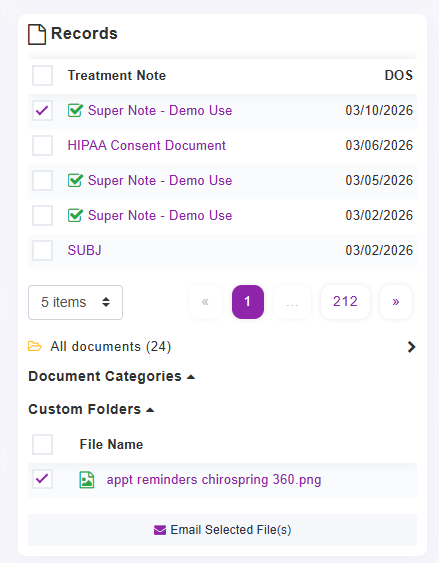
Records Panel
Displays documentation history, including:
- Treatment Notes
- Patient Forms
- Documents Attached
Each record includes the Date of Service for quick access
- You can click to quick view
- Select one or multiple and Email Selected Files
Memo Information
Allows you to add a Memo/Status to Patient File - This can also be seen in the Billing Dashboard, the last memo in the Attorney Report

Reminders
Patient Care Reminders can be set by visit # or date and set to repeat. You can see what reminders are on patient file, as well as set new reminders.
-> Learn more about Patient Care Reminders (also referred to as Alerts or Stop Managers)
Treatment Plan
Active Treatment Plans for patient will appear here, can have up to 3 active and tab through them to see a quick summary: Start State, Services Used/Included
-> Learn more about Treatment Plans
FOURTH COLUMN
Tags
Add/view Patient Tags. These can be seen when scheduling patients and can filter for Patient Tags in reports.
Learn more about Patient Tags —> https://chirospring.helpscoutdocs.com/article/696-tags
Preferred Provider
Set a preferred provider that can be seen when scheduling the patient
ICD Codes
Displays diagnosis codes historically associated with the patient (used on Previous Fee Slips/Claims or Imported over from Previous EHR).
Codes appear as selectable tags and may include:
- Active diagnoses
- Chronic conditions
- Injury-related codes

When you click the (+), will open Patient Diagnosis History list that can
- +Add Diagnosis Code
- Edit/Delete Diagnosis Code

ICD Codes on the Patient Treatment Dashboard, can be found quickly in the Fee Slip - Diagnoses - Patient tab

Date of injury
DOI from Last Claim: The Date of Injury (Date of Current Illness/Injury) in the Treatment Dashboard pulls from claim item #14. You cannot edit this date on the Treatment Dashboard (it is for display purposes only and reflects the most recent date on any claim for this Box 14 claim item.

-
Fee Slip
You may edit the Onset Date (which is in fact the Date of Current Illness/Injury Box 14 Date) on the Fee Slip or on an actual claim.

-
Claim
Claims can be edited in several areas of the software.
- Pending Claims
- Claim History
- Checkout Cash Register
When you edit a claim, navigate to find Box 14 and change the date there.
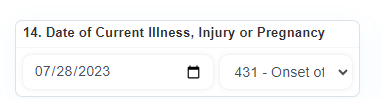
Once this is updated, it will change the Date of Injury on the Treatment Dashboard.
Remember, the Treatment Dashboard will always show the most recent date entered (for any claim). Editing past claims and changing this date will not update the Treatment Dashboard.
Patient Photograph
Patient photograph thumbnail, can click the camera icon to set from here or will pull image set in Patient File - Documents - Patient Photograph Folder. The patient can also upload their own Patient Photograph in the Patient Mobile App
X-Rays
Displays uploaded images or attached to the Xray folder in Documents. You can touch to open full screen and have Annotation options:

-> How to Annotate X-Ray Images
Financial Snapshot
Provides a Quick View summary of:
- Primary/Secondary payor information
- Account number
- Total charges
- Account balance
- Last visit
- Insurance details (co-pay)
- Last payment
- Unapplied payments
This is a quick-glance financial status panel.