
Upgrading from Desktop to 360 - Full Guide
ChiroSpring 360 offers a faster, more modern interface with many features not possible in Desktop. Use the below guide to review key differences and help you understand how these features work in ChiroSpring 360. We are consistently updating and adding feature parity between the two platforms.
MUST WATCH VIDEO FOR CUSTOMERS MOVING FROM DESKTOP to 360
Features parities coming soon:
- Insurance Cases (ETA November 2026)
- Products - ChiroSpring 360 has some features desktop doesn't around products and vice versa, connect with a sales rep if you use Product Orders heavily to see how 360 handles OTC similarly but different
- Exercises - Integration with WebExercises coming to 360 in our next update
Data Migration
We are able to migrate most of your data from Desktop into 360. This process can take up to five business days and requires you to provide the specific date you’d like the migration completed. Please note that this migration can only be performed once.
The following data will be migrated:
- Patient demographics
- Patient profile photos
- Patient driver’s licenses (front and back)
- Patient insurance plans (including front and back images of insurance cards)
- Patient appointments (12 months prior and all future appointments)
- Images from the Images tile (annotations cannot be exported and will not be included)
- Documents from the Documents tile
- Macros (all Macros will be exported and imported into 360; users are responsible for pinning and organizing them within 360)
- Insurance carriers (third-party payers)
- Diagnosis codes (most recent with dates)
- Attorneys
- SOAP notes (in HTML format), which will be uploaded into each patient’s Documents folder under a folder titled “ChiroSpring Desktop SOAP Notes”
We also recommend running any necessary reports in Desktop and saving them as PDFs for your future reference.
The following will not migrate
- Settings
- Provider Schedule/Hours
- Price List/Fee Schedules
- Users
- Scheduler Time Blocks
- Patient Care Plan
- Emergency Contact
- Employment Info
- Primary Care Provider
- Acknowledgements
- Insurance Cases (Payor will come over, not case or case detail)
- Condition Cases
- Ledger
- Review of Systems (will be in SOAP notes which do migrate over)
- Transfer of Care
- Previously sent Statements
- Patient Notes (not SOAP, the sticky notes in patient file)
- MIST
- Vitals
- Labs
- Immunizations
- Stop Managers
- Health History
- CPOE
- Med Rec
- Amendments
- Patient Education
Please note that patient ledger balances cannot be migrated. See below for guidance on how to manage that process.
Import Patient Desktop Balances into 360
This is a process you will need to complete. Follow the steps in the below article.
Import Patient Balances - Click Here
Macros - Pinning & Arranging
Your Macros from Desktop will be imported for you. However, we are unable to pin and arrange them. Follow the steps in the below article to pin and arrange your Macros.
Pinning Macros simply means adding them to YOUR CUSTOM GRID. Each provider can have their own pinned macros and specific arrangement of them. This is great as different provider types (e.g. DC or MT) will want to utilize different macros for their documentation.

ChiroSpring Pay
If you are using ChiroSpring Pay in Desktop there are a few steps for you to follow.
- You will need to sign up for ChiroSpring Pay (again). This seems silly, we know. However, as it is a new platform this step is required. It should be a fast process as you were already accepted once.
- When you apply, provide your Desktop PMID (this helps ensure your account is transitioned smoother). You can find the PMID in Desktop in Settings/Practice Info/Integrated Payments (top right).
- If you have a terminal, let them know that during your enrollment process. Your terminal will need to be "moved" from the backend to ChiroSpring 360. Once moved, you will perform a software update. After that, it will work in ChiroSpring 360.
- We can migrate your stored cards on file. If you would like this done, please let us know.
- We cannot migrate scheduled payments. You will need to re-create these scheduled payments in 360. In Desktop run the "Scheduled Payments Report" for status "Scheduled".

- Then re-create them in 360. Click Here to learn more.
Ledger
In ChiroSpring Desktop the ledger has tabs to differentiate charges, payments and scheduled payments. You can find a similar ledger in ChiroSpring 360.


Click Here - to learn more about the Ledger in ChiroSpring 360
Create Payers (Insurance Carriers)
ChiroSpring Desktop makes it easy to create Insurance Carriers (Payers). This is also possible in 360 under Settings/Billing/Third Party Payers.

Setting Payer Overrides
ChiroSpring Desktop makes it easy to configure a Payer (Insurance Carrier) to populate a claim just the way the payer wants it. This is accomplished by using the dropdown options for each CMS-1500 box.
This is called a Payer Override.

In Desktop, you can also enter the provider's info for NPI, taxonomy code, license #,, SS#, EIN, etc.
This is called a Provider Override.


Payer and Provider overrides are possible in 360 as well.

Click Here - To learn how to create Payor and Provider overrides.
Custom Services - Create New Services
ChiroSpring Desktop makes it easy to create new services (CPT Codes).

This is also possible in ChiroSpring 360.

Click Here - To learn how to create custom services.
Note, you cannot create a duplicate CPT code in 360. This is because CPT codes are used to track treatment plans, memberships and used in PMR estimations. Duplicate CPT codes would be problematic.
Custom Products - Create New Products
ChiroSpring Desktop makes it easy to create new products.

This is also possible in ChiroSpring 360.

Click Here - To learn how to create custom products and even track inventory.
Edit Allowed Amounts (Procedure Allowances)
In ChiroSpring Desktop we have "Edit Allowed Amounts". Here you can determine if a service is covered or not-covered for a particular insurance. In addition, you can set the allowed amount for each service.

Click Here - To learn how to set procedure allowances. They can be edited in Billing/Settings/Third Party Payers - click the "Procedure Allowances" button.

Patient Member Responsibility (PMR)
ChiroSpring Desktop estimates what a patient owes at the time of checkout based on copay/coinsurance and deductible.

PMR is also available in ChiroSpring 360 and is even more refined. 360 lets you track benefits for chiropractic, therapy and general (codes that are not chiropractic or therapy). This makes the PMR estimation at checkout more accurate.

Click Here - To learn how to setup and use PMR.
Fee Schedules
Fee Schedules in ChiroSpring Desktop let you set a different price for a given service. Fee Schedules can then be assigned to patients.

Click Here - To learn how to create Fee Schedules.
Click Here - To learn how to assign a Fee Schedule to a patient.
Fee Schedules can be used for any non-insurance visit (we may support allowing for insurance visits in the future).
Charges Grid - Service Favorites (Charge Folders)
ChiroSpring Desktop allows you to create charge "Groups" or "Folders" and then pin one or multiple products or services to them.

You can create "Folders" and "Pin Charges" in 360 as well.

Click Here - To learn how to create service favorite lists (charge folders).
Front Desk
ChiroSpring Desktop provides a front desk to check in patients, start your edit SOAP process and check them out. Using Patient Flow you can move patients into rooms. The Unfinished SOAP Note column lets you see which SOAP notes are unfinished.

ChiroSpring 360 Provides a similar workflow.

Click Here - To learn how to use Front Desk.
Click Here - To learn how to setup Save & Sign.
Click Here - To learn how to track Unfinished Treatment Notes.
Click Here - To learn how to use the Checkout Screen.
Cash Register
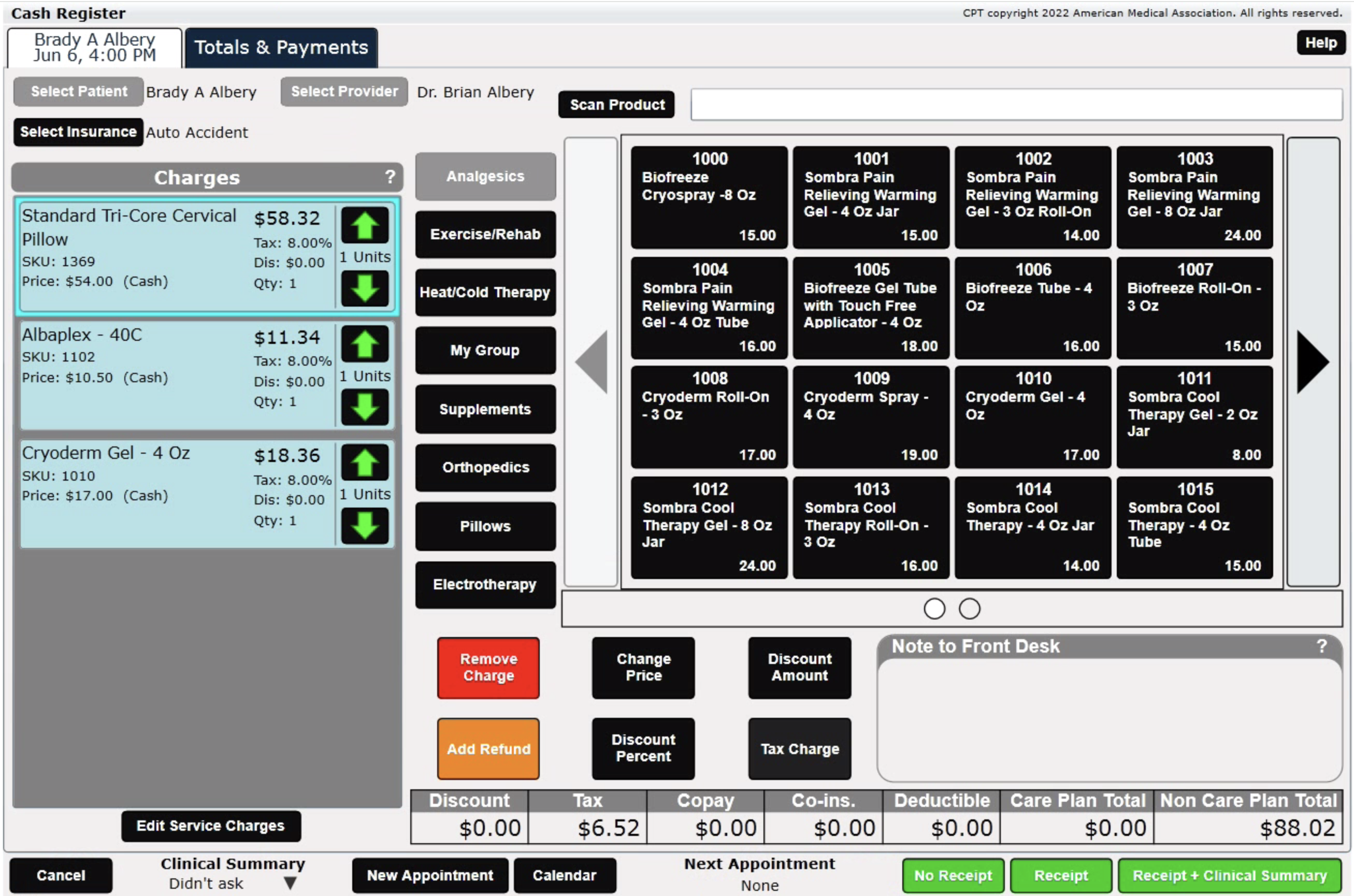
ChiroSpring Desktop provides a Checkout Screen (Cash Register). This can be accessed by checking out a patient, or selecting independently to sell a product.
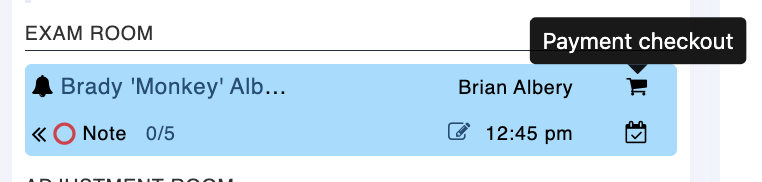
ChiroSpring 360 provides a similar checkout screen. From the Front Desk click the "Payment checkout".
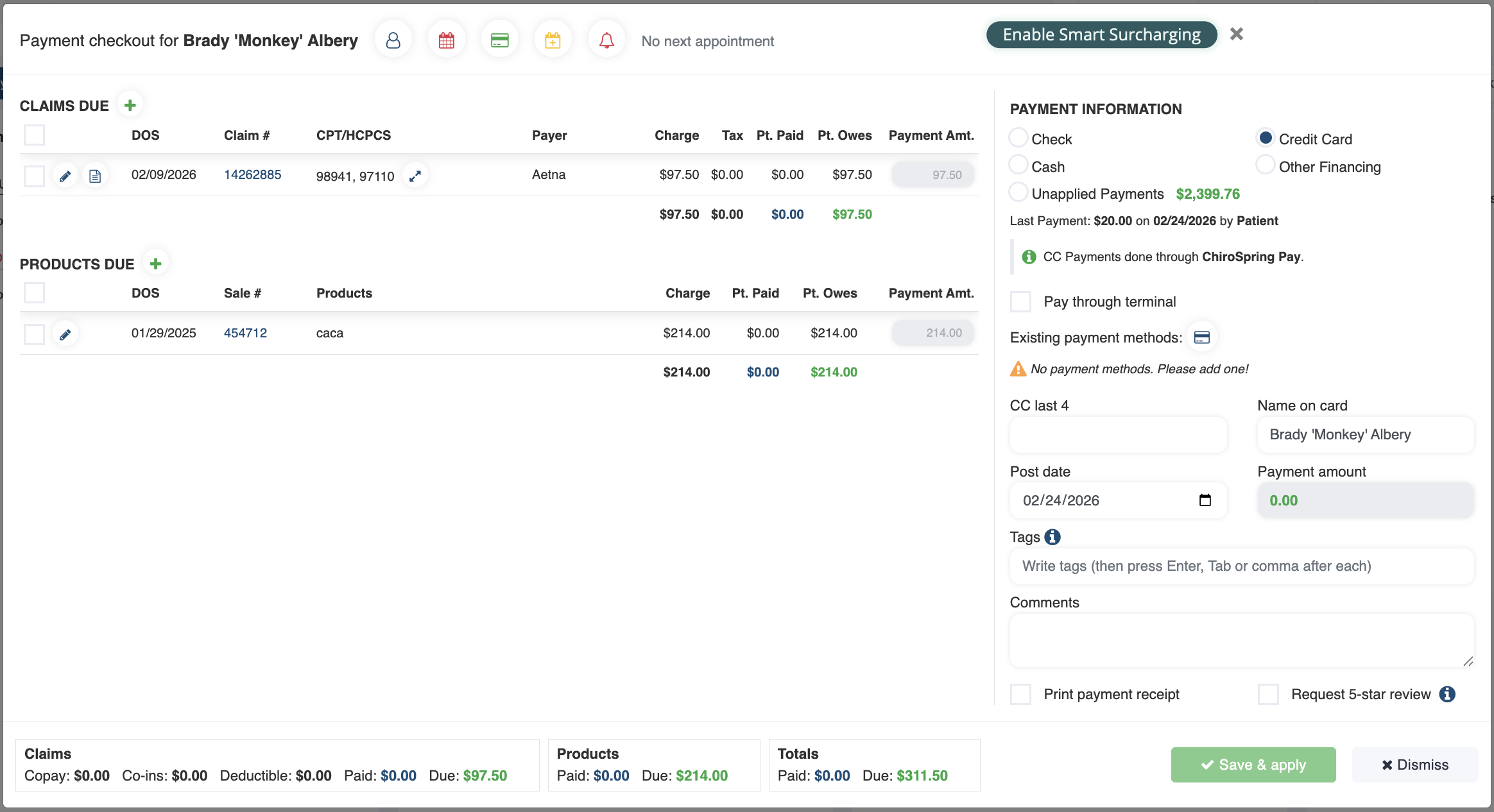
This will open the Checkout Screen.
Features of Checkout Screen
- Shows all unpaid claims and products
- Take payment
- View upcoming appointment
- Schedule appointment
- Add payment method on file
- Send Patient Review request
- Print payment receipt
- Edit Fee Slip or Claim
- Add product sale
Click Here - To learn how to use the Checkout Screen.
Click Here to learn more about using ChiroSpring Pay.
Unfinished SOAP Notes
It is easy to track Unfinished SOAP Notes in ChiroSpring Desktop. There is a column on Front Desk specifically for this purpose.
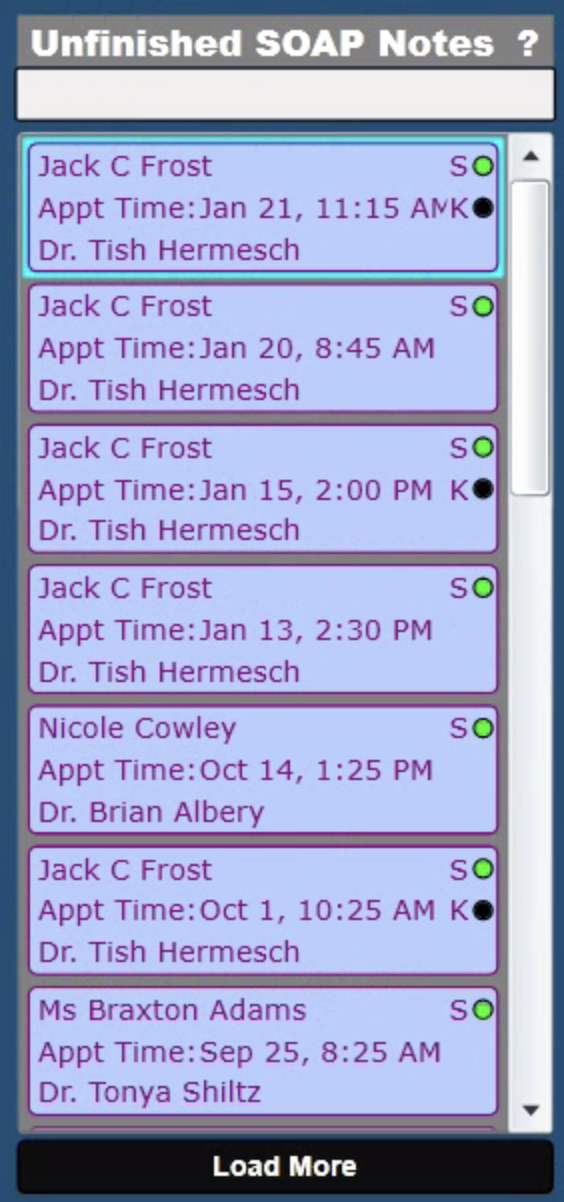
This is possible in 360 as well. Follow these steps.
- Setup the provider for "Save & Sign" on treatment notes.
- Where to Find Unsigned Notes
- Front Desk "Unsigned Notes" filter (you can also filter by provider at the top of Front Desk)
- Visit Compliance Report
Click Here - To learn how to setup Save & Sign.
Click Here - To learn how to track Unfinished Treatment Notes.
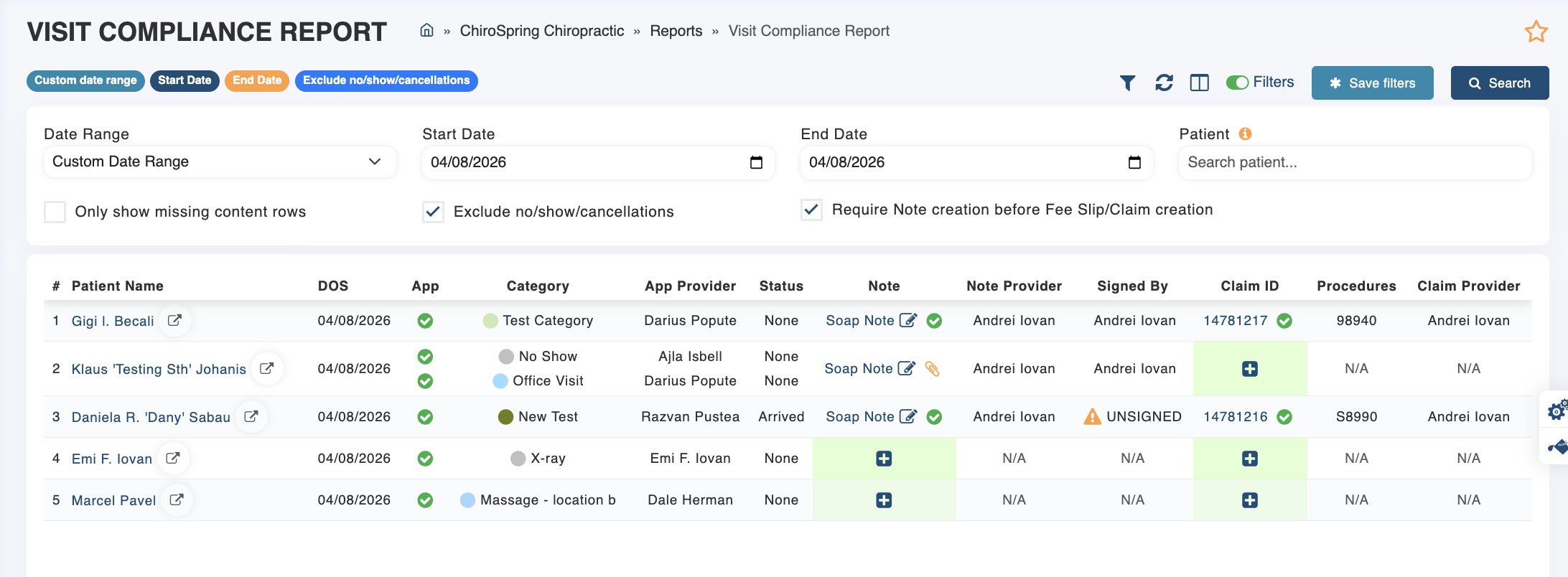
Below is the Visit Compliance Report. This report can be filtered to show you only visits with missing claims or notes or unsigned status.
Rooms and Patient Flow
ChiroSpring Desktop provides a "Patient Flow" view that lets you move patients into custom rooms.

This is also possible in 360. Create as many rooms as you like, set their color and order. You can move one or more patients into a room on Front Desk.

Click Here - To learn how to create rooms and set them as "Enable on front desk flow".
Stop Managers
ChiroSpring Desktop provides patient alerts in the form of "Stop Managers".
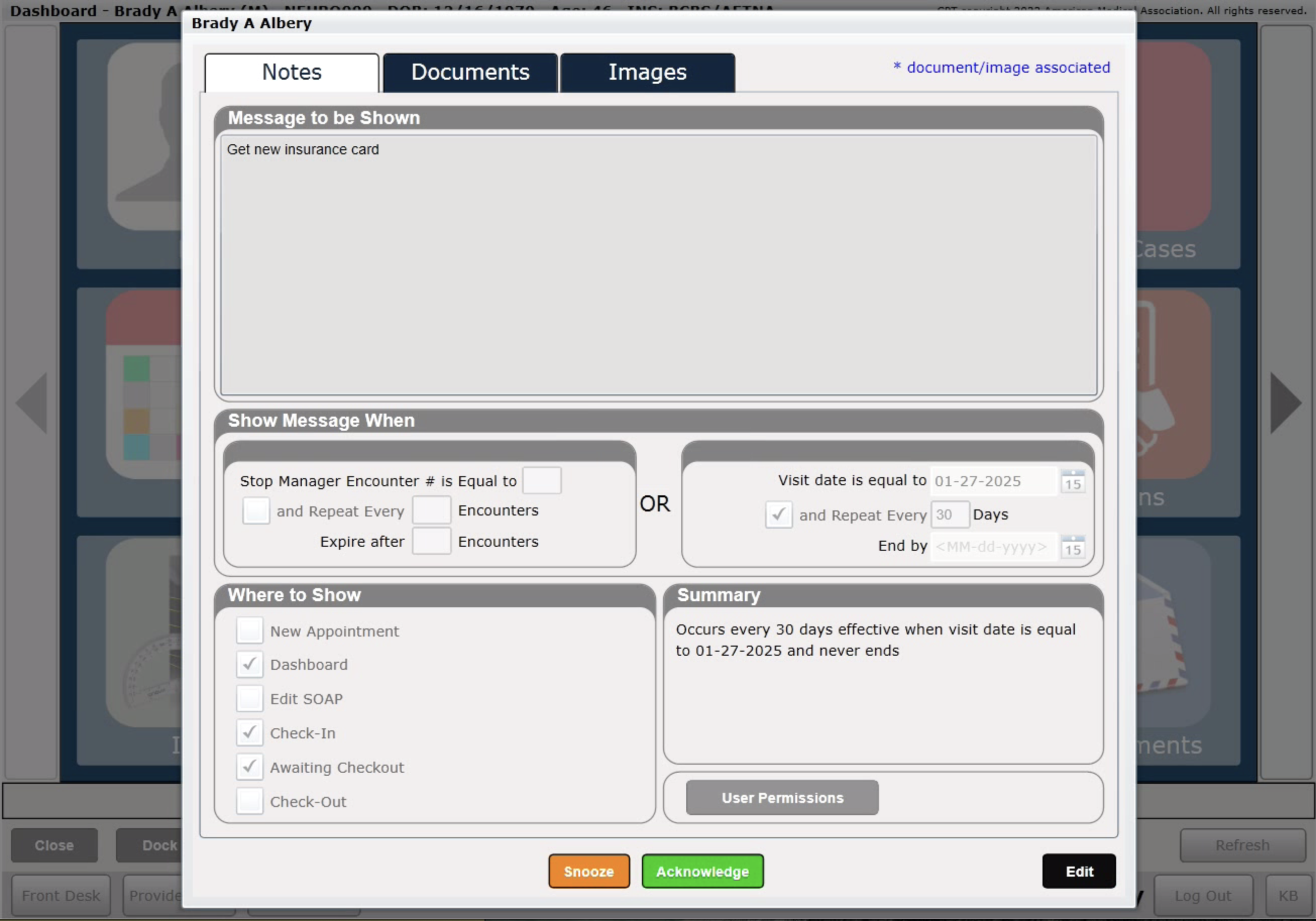
These also exist in ChiroSpring 360 and are called "Patient Reminders". You can have these alerts appear when accessing:
- Billing Dashboard
- Treatment Dashboard
- Treatment Notes
- Check-In
- Check-Out
- New Appointment
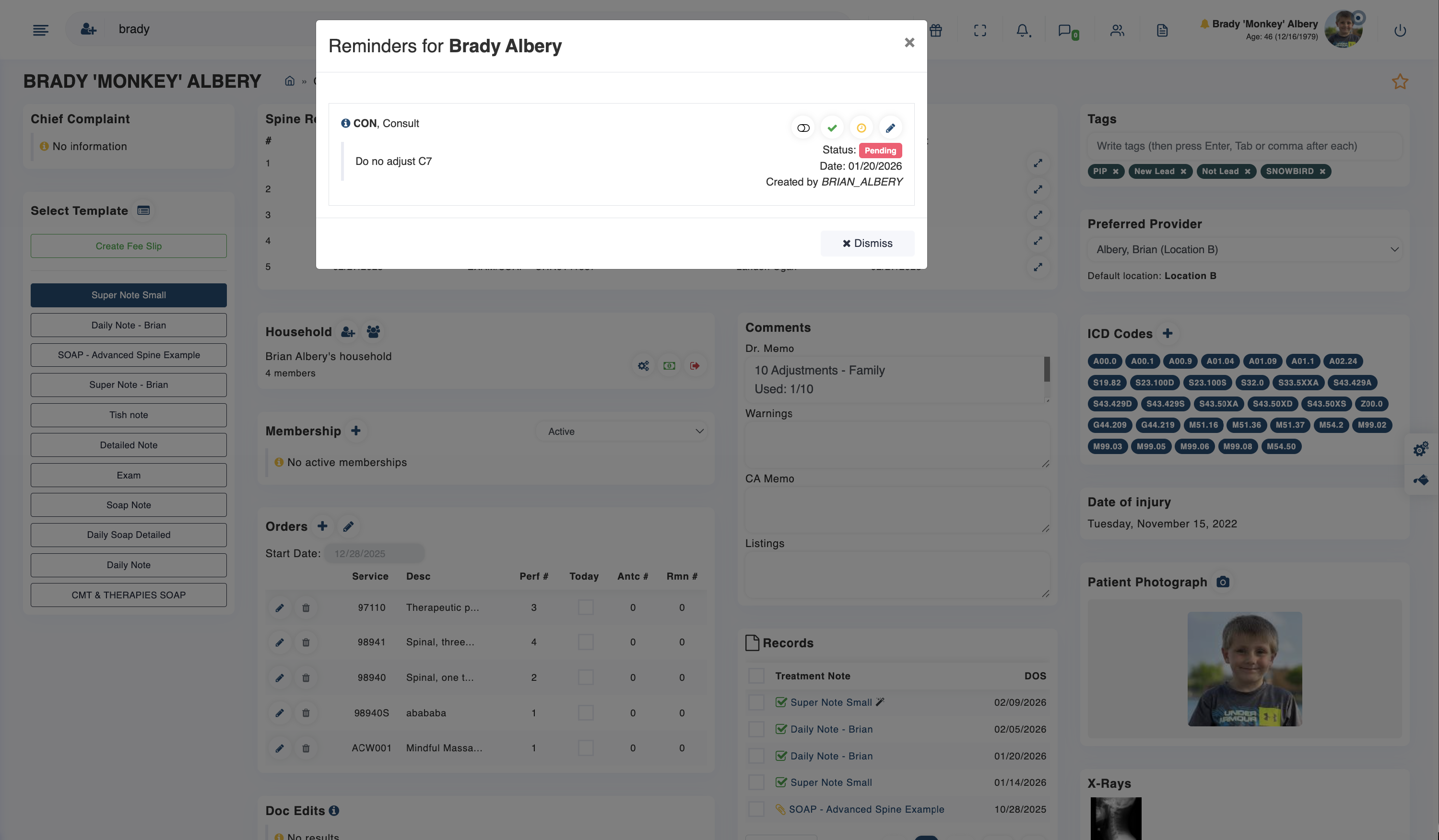
Click Here - To learn how to use Patient Reminders (Stop Managers).
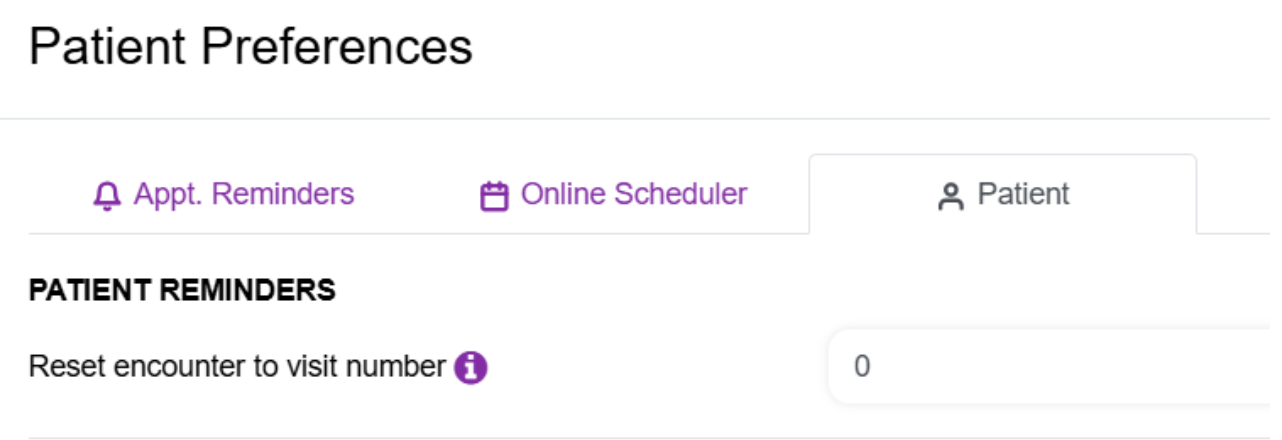
We also track visit counts here:
- Top of a Patient's Reminders Dashboard (You can reset the visit counter in the Patient file - Communicator/Patient Preferences - Under the Patient Tab

We also have an Orders Counter in the Treatment Dashboard for patient. You can edit that date to any date you choose and will count the service codes used for that patient since that date.
Statements
ChiroSpring Desktop makes it easy to create statements for your patients. There are filters to ensure you are creating statements only on charges patients owe you for (reconciled charges even).
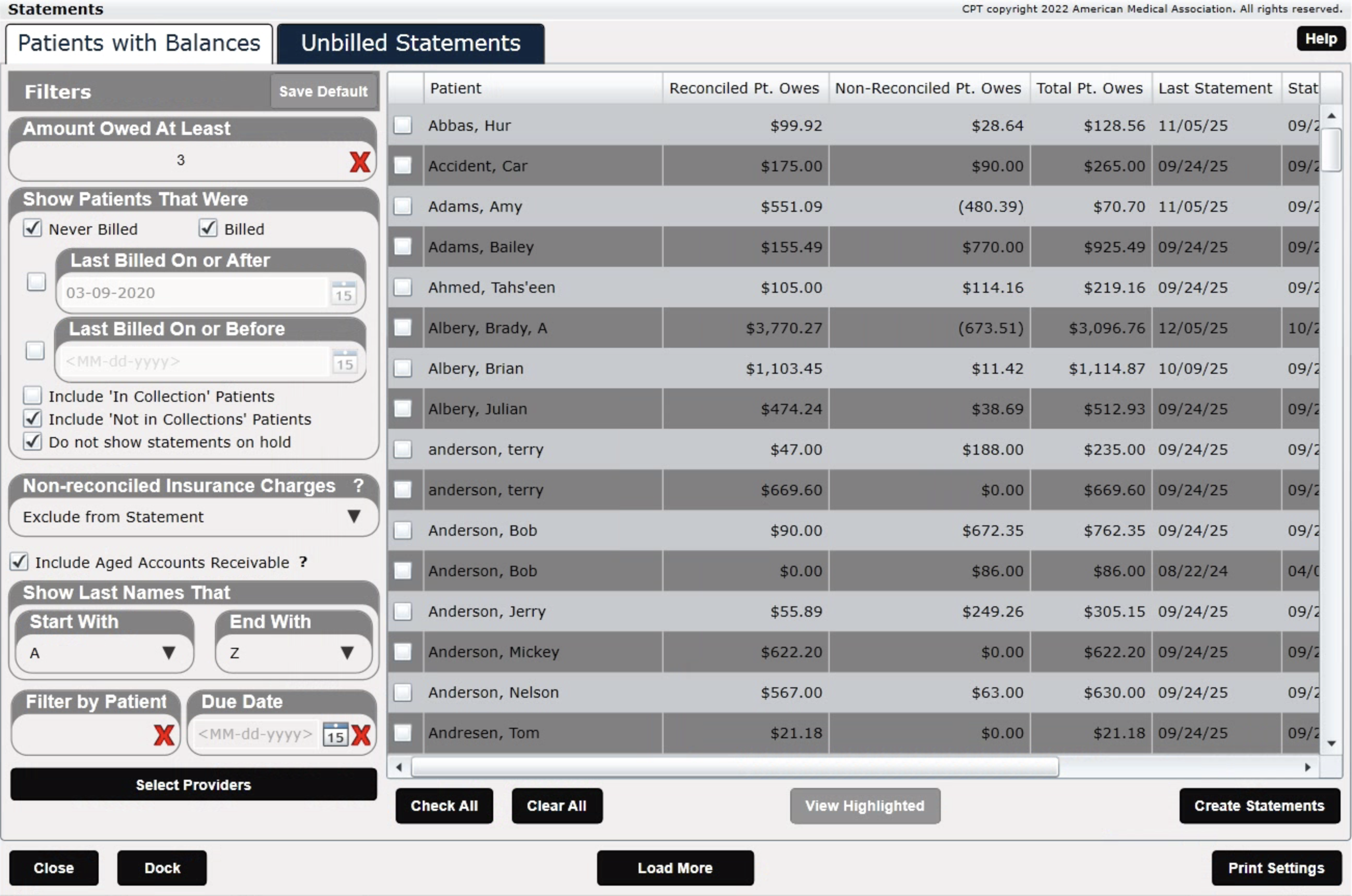
In ChiroSpring 360, statements are even more powerful as they can not only be printed, but can be sent via Email or SMS with a payment link (if you are using ChiroSpring Pay).
Click Here - To learn how to use Statements in ChiroSpring 360.
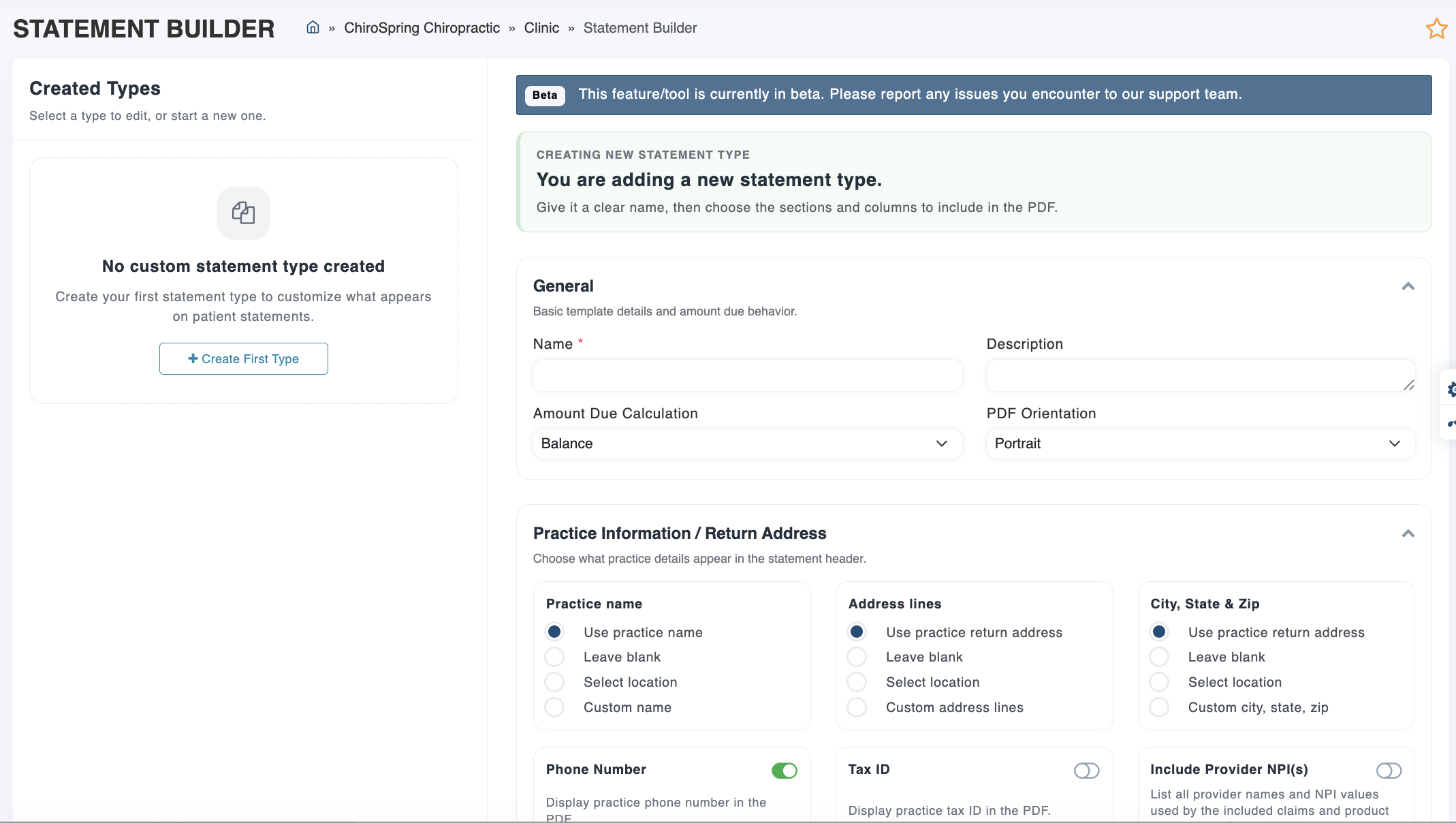
You can also build your own statement template (make it anyway you like) with our Statement Builder (Settings/Billing/Statement Builder).
With Statement Builder, you can:
- Build statements based on claim balance or patient owes balance
- Choose landscape or portrait orientation
- Select which practice/location details appear for return information (perfect for multi-location practices)
- Customize payment methods shown on the statement
- Pick and choose the columns and details you want included
And more!
Reconcile - Quick Post
Posting a paper remittance in ChiroSpring Desktop is easy using the Reconcile App.

Post your paper remittance in 360 using Quick Post.

Click Here - To learn how to use Quick Post.
We plan on adding more fields to Quick Post in the future.
Calendar (Scheduler)
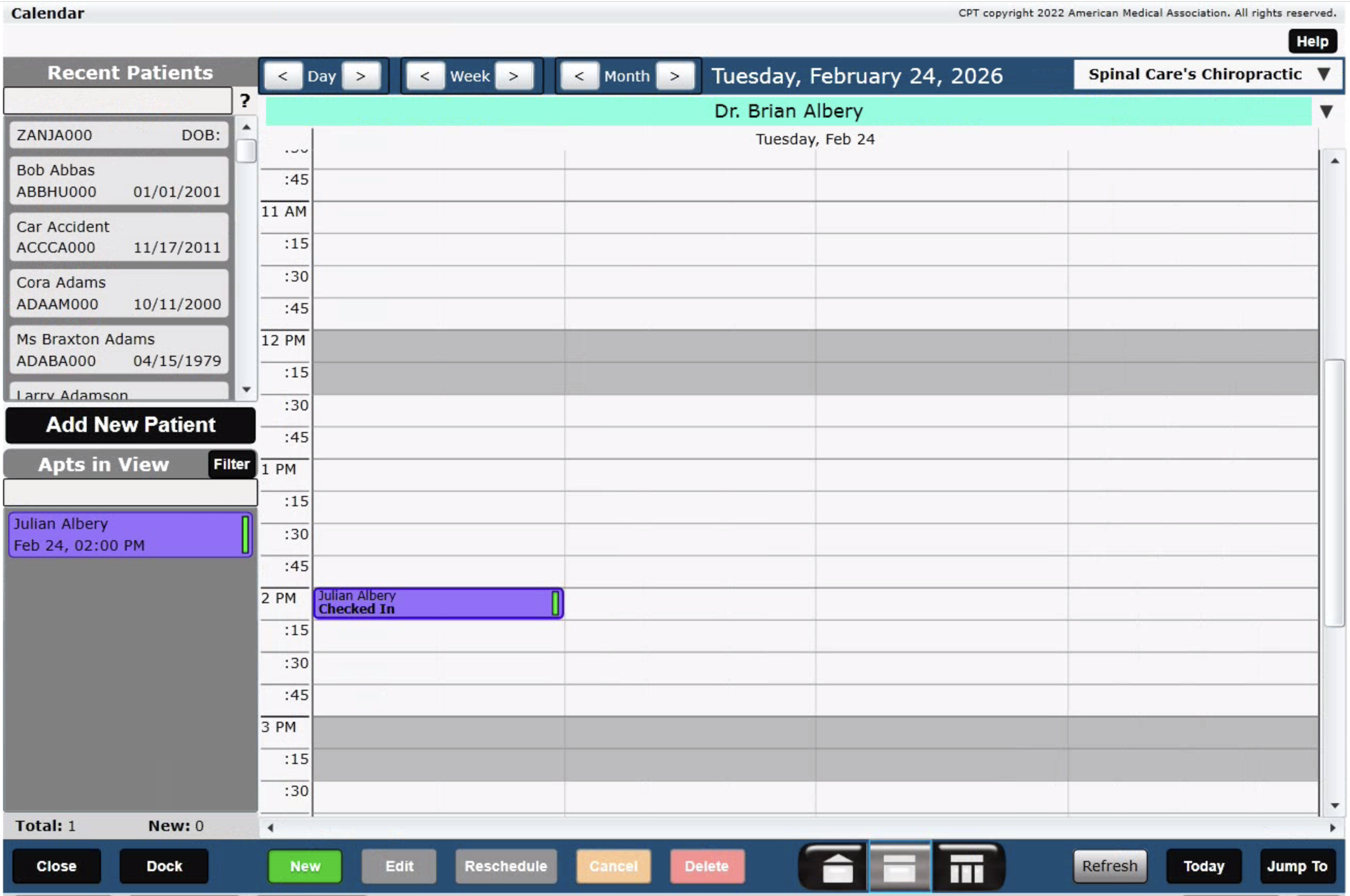
ChiroSpring Desktop offers a calendar that is fully customizable. This includes adding providers and resources to the calendar, setting header colors (for providers and resources), setting start and end times, etc.
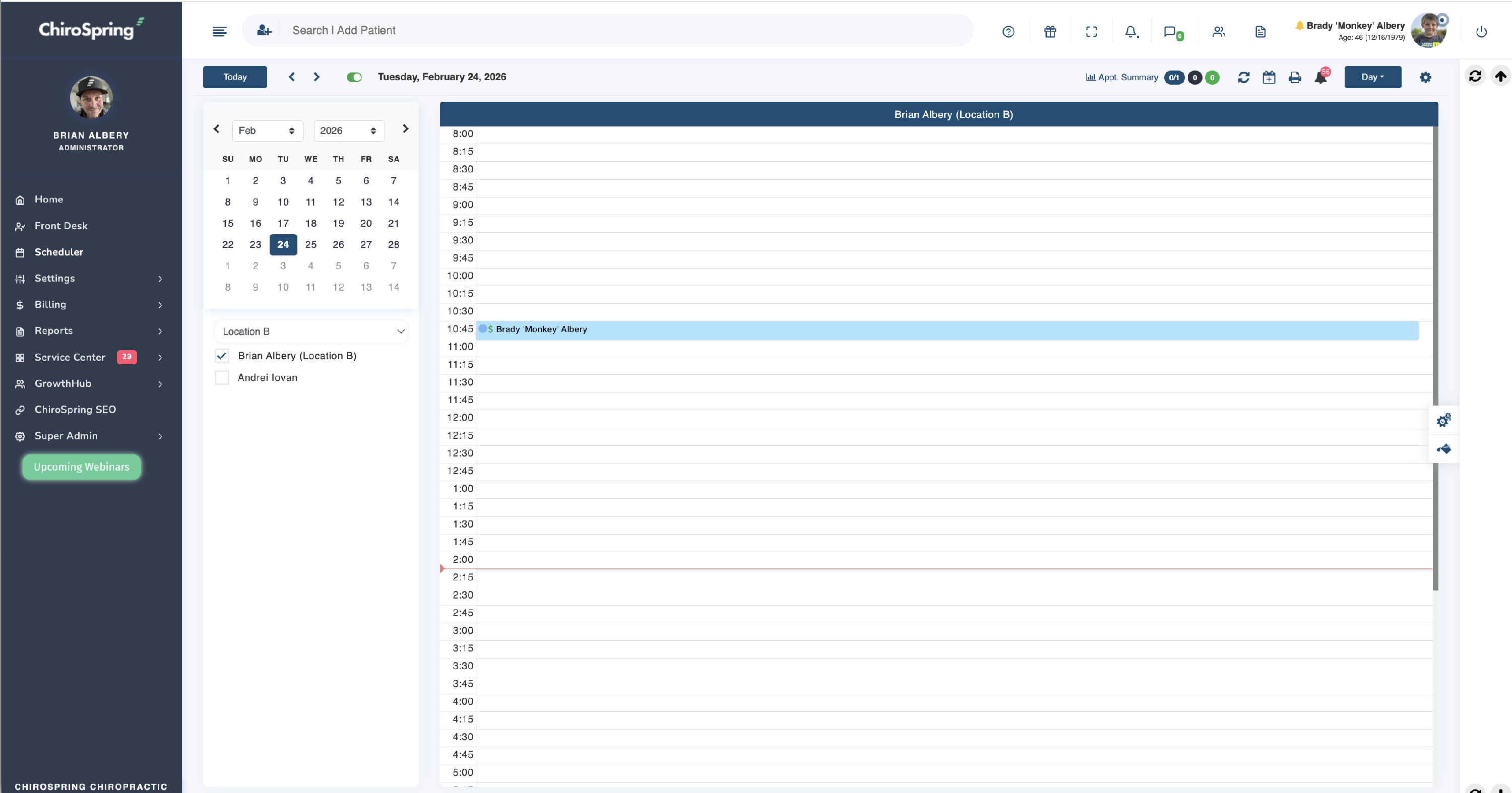
The Scheduler in 360 is very customizable but works a bit differently.
- We do not show columns on the scheduler for a given provider (although you can customize how many you schedule for a given time slot).
- Patients do not have to be FIRST booked to a resource (as they do in Desktop). You may book a patient directly to a Room/Resource if you prefer.
Click Here - To learn how to customize the Scheduler.
Click Here - To learn how to create Time Blocks on your Scheduler.
Visit Types (Appointment Categories)
ChiroSpring Desktop lets you create Visit Types.

We call these Appointment Categories in ChiroSpring 360.

Click Here - To learn how to setup Appointment Categories.
Online Scheduling
ChiroSpring Desktop provides an online scheduler feature that lets patients see available times and book their appointment.

ChiroSpring 360 provides Online Scheduler as well (part of ChiroSpring 360 Pro+).
- Patients view and book appointments online
- Take payment or payment method (customize based on appointment category) - requires ChiroSpring Pay

Click Here - To learn how to use and customize the online scheduler.
You can also create custom URLs based on location, service and provider in Workflow Rules.

Patient Intake/Kiosk
ChiroSpring Desktop provides a very robust and slightly customizable kiosk. You can determine which sections of the kiosk you want to appear and even create your own "Additional Intake Questions" and "Acknowledgements". The main advantage is that data auto-populates into ChiroSpring and for the most part offers an easy process for the patients.
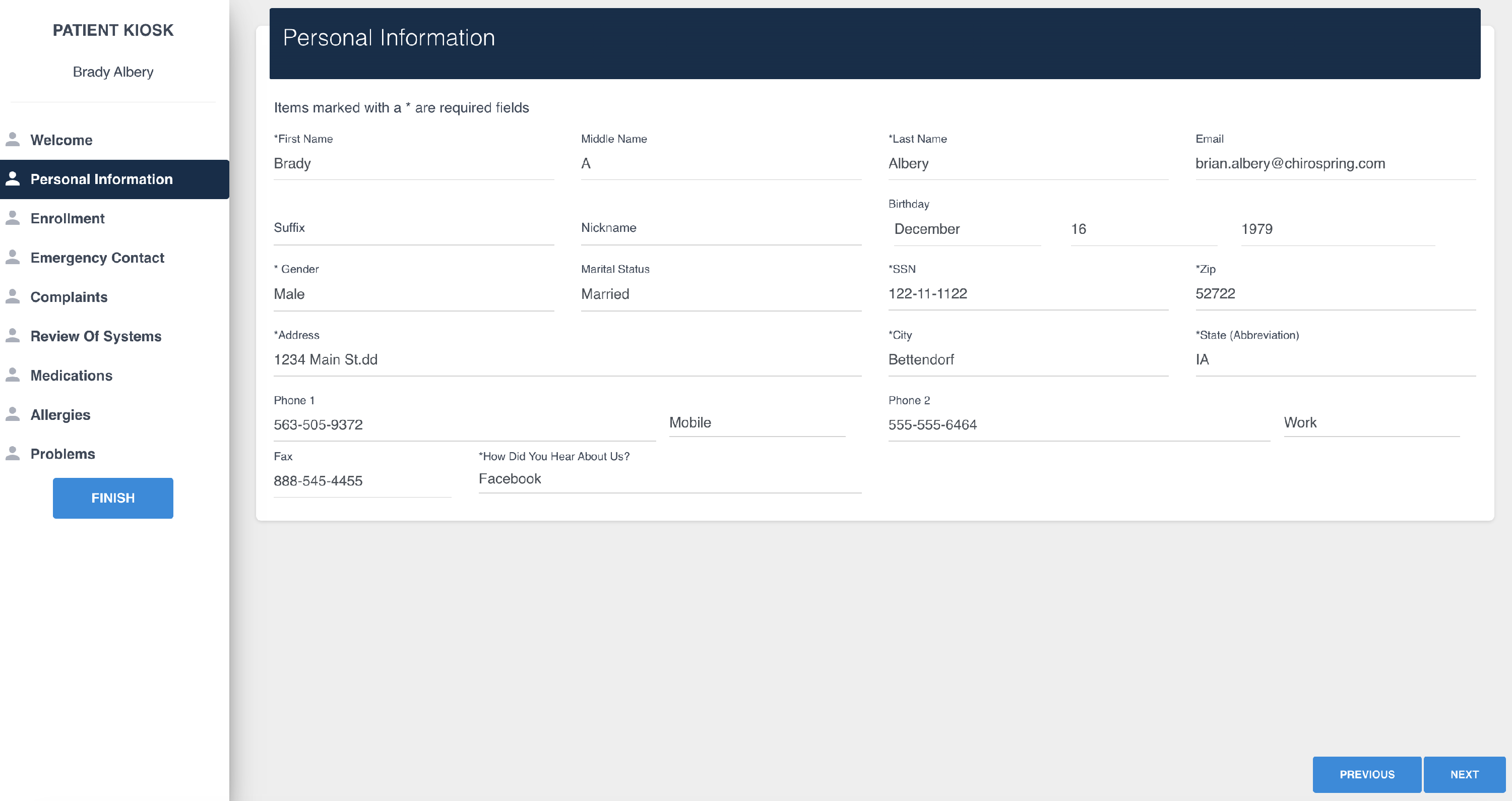
ChiroSpring 360 provides a slightly different kiosk experience.
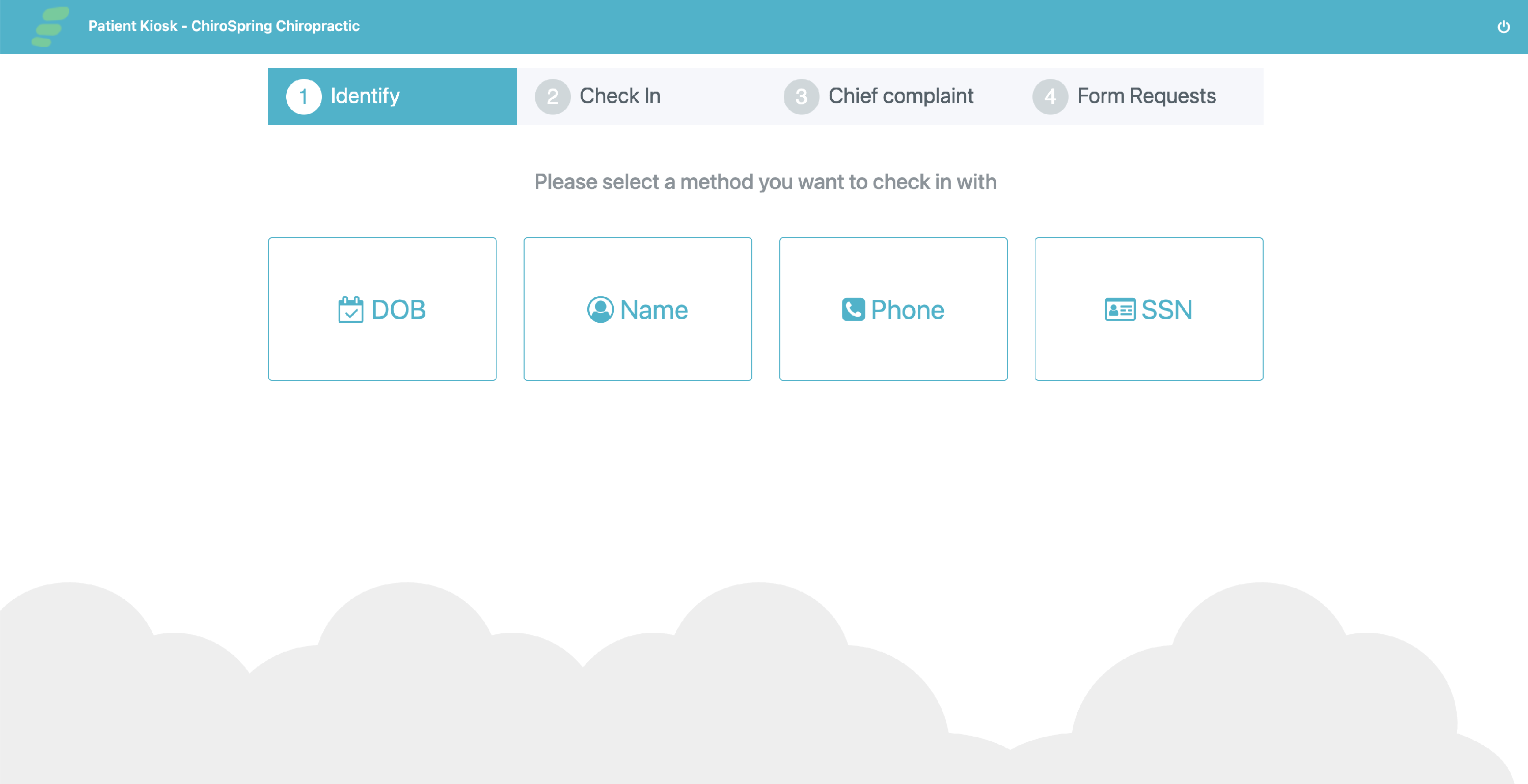
- Information from the Contact Form will sync back to ChiroSpring (name, DOB, phone, etc.)
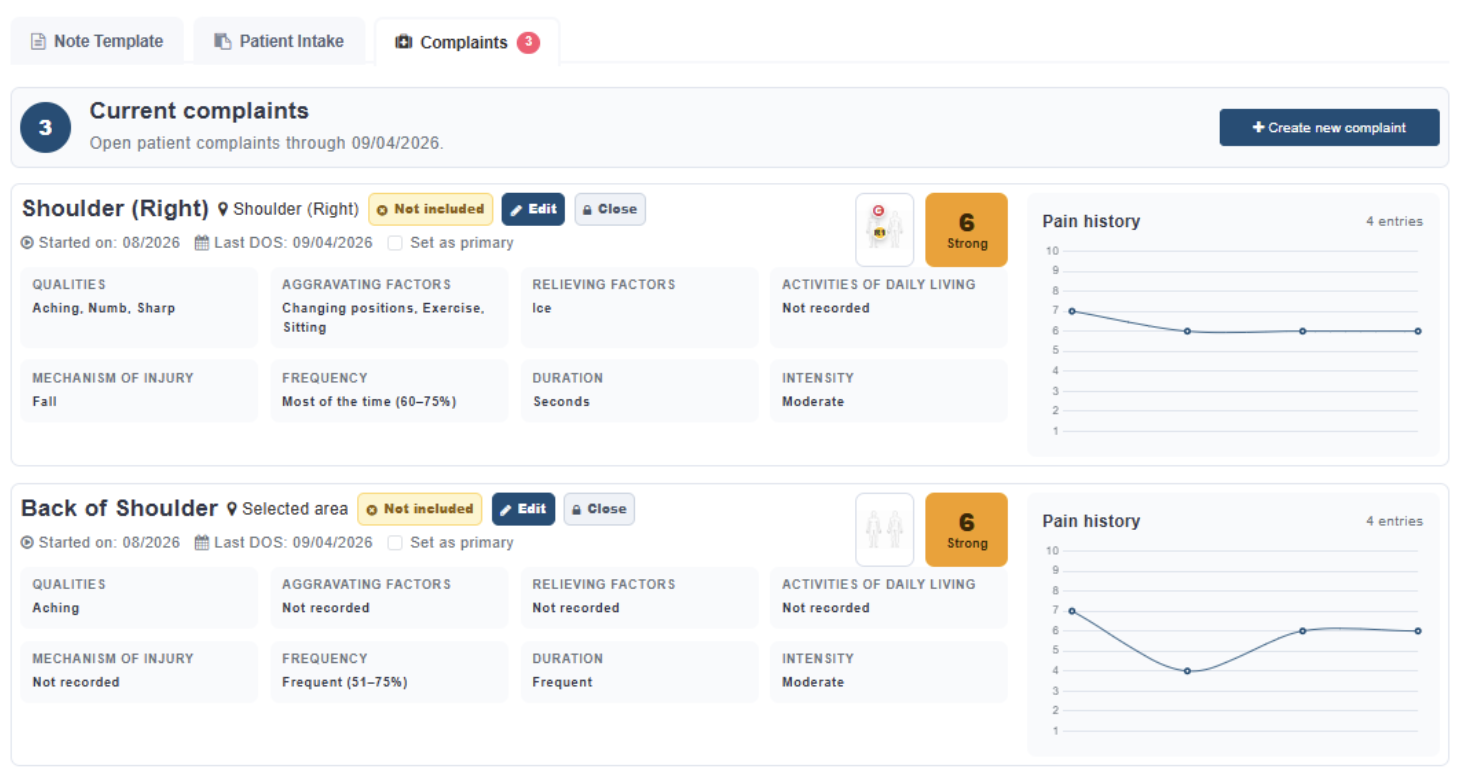
- Complaints and syncing to your note is possible (like in Desktop) with our Advanced Complaints.
- Click Here - To learn more about Advanced Complaints.
- Forms Consents are 100% customizable and very easy for patients to use. Assigned forms will be due at the kiosk. Click Here - To learn how to create and assign patient forms.
- Forms may be attached to the Treatment Note - Click Here to learn how.
Click Here - To learn how to use Patient Kiosk in ChiroSpring 360.
Appointment Reminders
In ChiroSpring Desktop appointment reminders are only offered through an integration (Remindercall.com or Doctible (Echo).
Appointment Reminders, with 2-way SMS, are fully integrated into ChiroSpring 360.
Click Here - To learn how to setup Appointment Reminders.
We also recommend you take a look at the full set of Patient Engagement tools offered through GrowthHub - Click Here.
Multi-Location
ChiroSpring Desktop excels at multi-location. You can toggle location on Calendar, Front Desk and generate almost any report by location.
ChiroSpring 360 also provides multi-location support. The biggest difference is creating a duplicate provider for each location and then using the "Profile Name" to distinguish between locations. When setup properly you can toggle locations on Scheduler, Front Desk and filter reports by "location" for providers at those locations. We will be adding more multi-location features in the future.
Click Here - To learn how to setup Multi-location.
Treatment Plans
Treatment Plans are similar to the Care Plans in Desktop. You can create estimates for a group of products & services and use them with our without insurance. You can create discounts for pay up front or pay in full as well.
Where treatment plans differ: They do not currently take "treatment plan money" and auto apply that to "treatment plan charges". If you are okay doing this process manually, you will have no problem adopting the treatment plans in 360. In the future we will be improving our treatment plans to auto-apply a treatment plan payment.
Click Here - To learn how to use Treatment Plans.
SOAP Notes
SOAP Notes in 360 are different than in Desktop. You are free to create any note template you would like with our builder using widgets such as drop-downs, check boxes, radio buttons, spine/advanced spine, spine strip, labels, meridians, etc. Create rows and columns to organize your notes as well.
Learn More - Treatment Notes - Full Guide
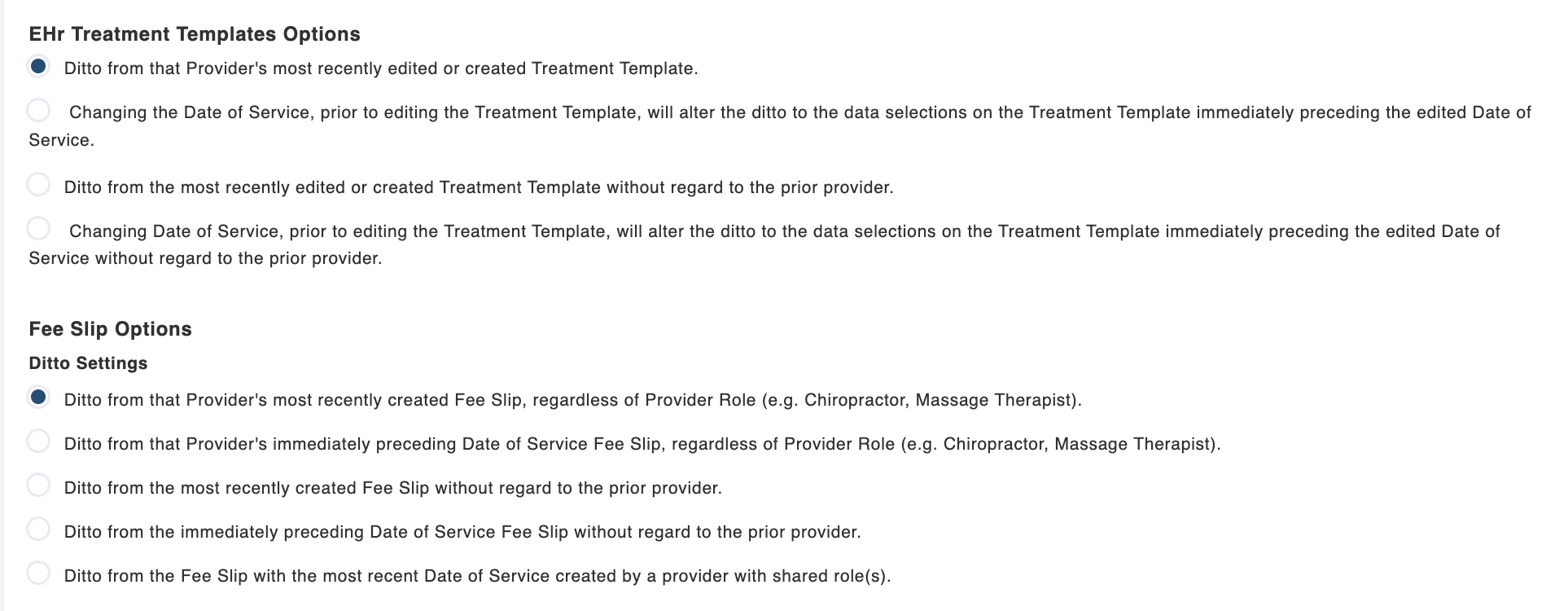
Auto SALT - Notes ditto over from the previous based on your ditto settings (think auto SALT in Desktop). You can find these ditto settings in Settings/Treatment Notes/Notes & Fee Slip.
SOAP Macros - Just like in ChiroSpring Desktop you can create SOAP Macros. Pin and arrange your grid anyway you like.
Click Here - To learn more about SOAP Macros.
Advanced Spine - Just like in Desktop, ChiroSpring 360 has an amazing spine for fast and accurate documentation.
Click Here - To learn more about Advanced Spine.
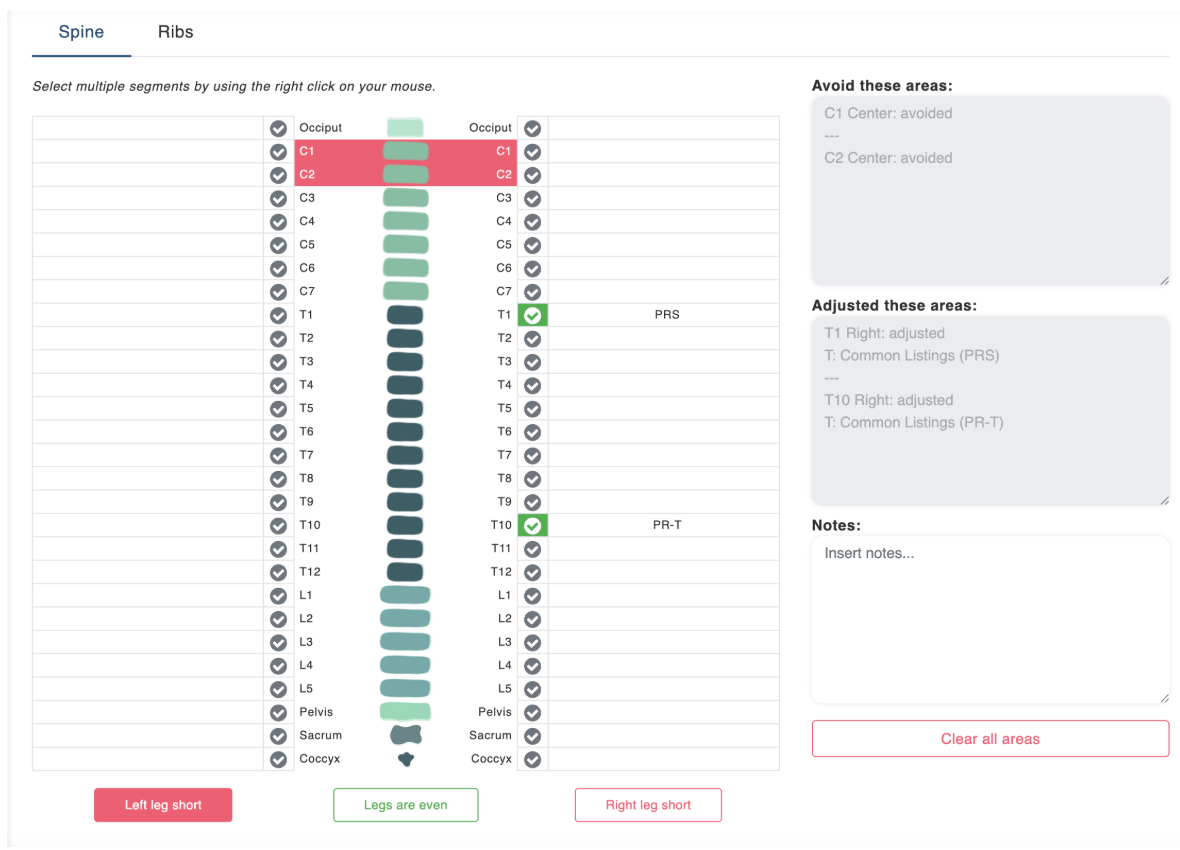
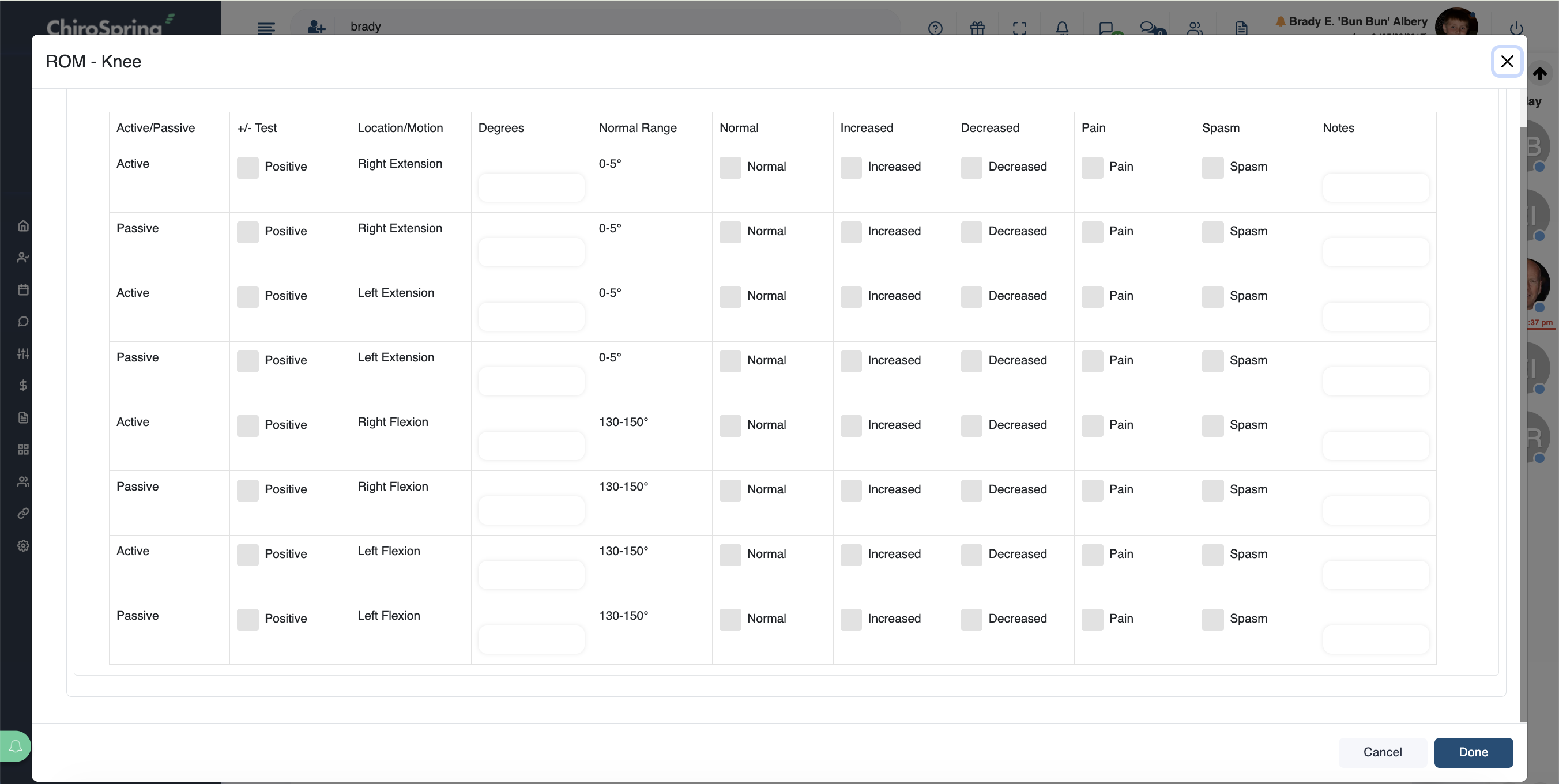
Dialogs (Coming Soon) - We built a Super Note we recommend Desktop users review as it has all of the Treatments and Evaluations from Desktop. These exist as expand/collapse sections. We are releasing dialogs VERY SOON that will give you a very similar desktop experience for treatments and evaluations.
Product Orders
Desktop provides an option to order products for your patient and set their frequency (e.g. 1 in AM and 2 at Bedtime).

While this feature is not built into 360, you could create a similar option in your Treatment Note template.

We also have a full integration with Fullscript for those who want to take product orders to the next level!
Click Here - To learn more about our Fullscript integration.
Charge Groups
Desktop allows you to create groups of CPT codes or Diagnosis codes in what we call "Charge Groups". This is possible using Advanced Ditto Configurations in 360.

Learn More - Advanced Ditto Configurations
Can Edit SOAP Notes
There is a setting under Settings/Clinics/Users & Rooms. Toggle this off if you want to block a user from being able to edit a treatment note.
